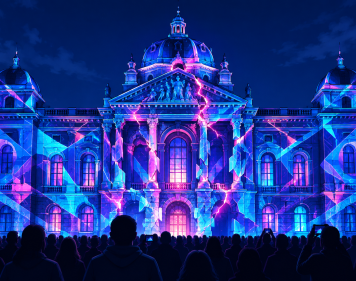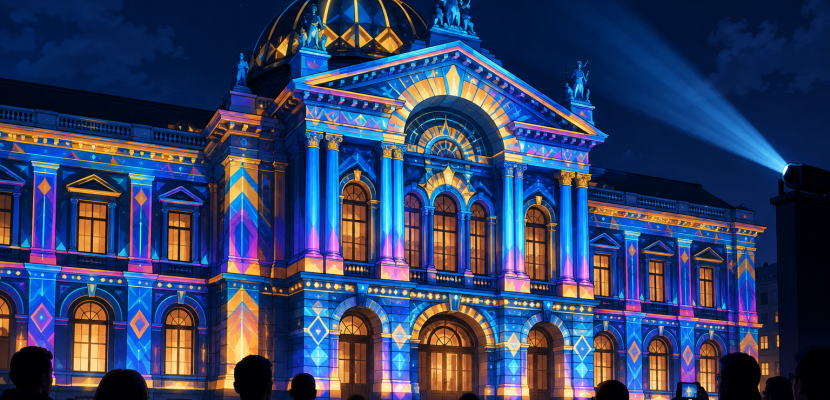
Projector mapping is the craft of shaping video so it lands precisely on real objects, such as a building, a car, a sculpture or a stack of boxes, instead of a flat screen. This guide covers what a projection map actually is, how the software bends light to fit a surface, and the seven steps to get your first piece working.
What is projection mapping?
Projection mapping (you’ll also see it called video mapping, spatial augmented reality, 3D mapping, or the typo “project mapping”) means projecting video onto a surface that isn’t a screen. The content is drawn to match the surface’s exact shape, so edges line up with edges and windows line up with windows. When it works, the object seems to glow, move or change material.
If you want to define a projection map in one sentence, here it is. A projection map is the set of instructions that tells the projector which of its pixels fall on which part of the physical surface, and how the video should be stretched, cut or masked to fit.
That’s the whole trick. The projector itself is ordinary. The magic lives in the map.
Where you’ve already seen it
You’ve probably walked past projector mapping without naming it:
- Monuments and festivals. Vivid Sydney has projected onto the Sydney Opera House sails since 2009, and Lyon’s Fête des Lumières fills the city’s facades every December.
- Theme parks. Disneyland’s Haunted Mansion opened in 1969 with singing busts whose faces were film projected onto blank sculpted heads, one of the earliest well-known examples.
- Art. Pablo Valbuena’s Augmented Sculpture series (2007) projected light onto simple white geometric forms. Urbanscreen’s 555 KUBIK (2009) made the facade of the Hamburger Kunsthalle appear to fold and breathe. Bot & Dolly’s Box (2013) mapped onto panels carried by industrial robots, and Nobumichi Asai’s OMOTE (2014) mapped onto a moving human face.
- Home. Halloween window projections of ghosts and zombies are the consumer end of the same idea.
These are multimedia artworks in the full sense: light, sound, sculpture and architecture all working on each other.
Visual projection vs projection mapping
Searches for “visual projection” or “virtual projections” often mean any projected image. The difference matters. Pointing a projector at a wall and playing a video is projection. Shaping that video so it respects the wall’s geometry, its doors, ledges and corners, is mapping. Visual projection mapping is the second thing.
How does projection mapping work?
A projector throws a rectangle of pixels. The moment that rectangle hits anything that isn’t a flat screen square-on to the lens, it distorts. Tilt the projector up and the image becomes a trapezoid. Aim it at a cylinder and it bends. Aim it at a box and different faces get stretched by different amounts.
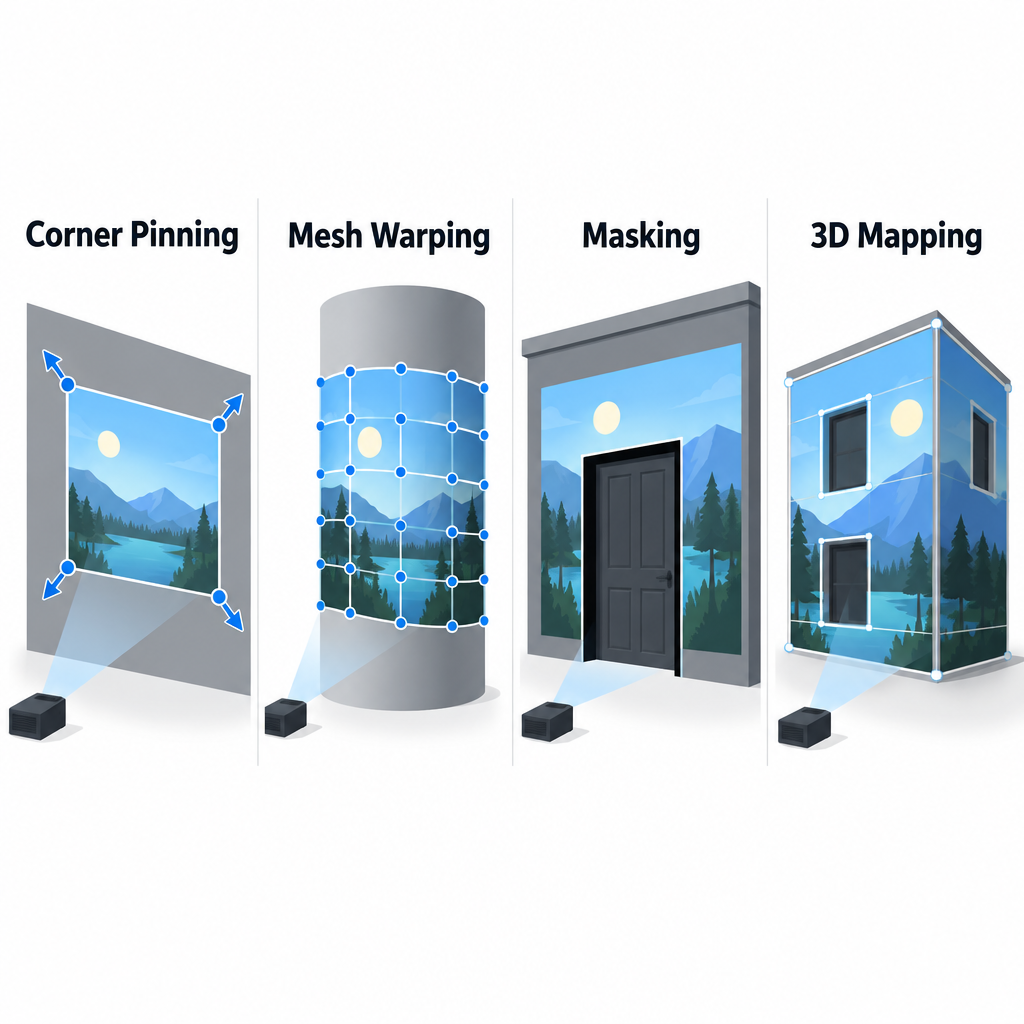
Mapping software fixes this in reverse. It pre-distorts the video so that, after the real-world distortion happens, the result looks correct. There are four core techniques, and almost every mapping tool is some combination of them.
1. Corner pinning (quad warping)
You drag the four corners of a video layer until they sit on the four corners of a flat surface, like a window or a canvas. Under the hood, the software computes a perspective transform (a homography) that maps the original rectangle to your new four-sided shape. For flat surfaces, this is all you need.
2. Mesh warping
For curved or uneven surfaces, a four-corner pin isn’t enough. Mesh warping splits the layer into a grid of control points, often 4×4 up to 16×16 or more, and lets you nudge each one. This is how people fit video to columns, domes and draped fabric.
3. Masking
Masks hide the parts of the projection you don’t want. You draw a shape around a door, a statue or a car, and everything outside it goes black. Good masking is what makes a piece look surgical rather than sloppy, because stray light spilling past an edge instantly breaks the illusion.
4. 3D mapping
This is what “3D mapping” usually refers to. Instead of warping flat layers, you build or scan a 3D model of the object, place a virtual camera where the real projector sits, and match that camera’s lens to the projector’s lens. Then you render the model from that viewpoint with textures, lighting and animation, and the render lines up with the real object.
The hard part is calibration. You click a handful of known points on the model, then line up a projected cursor with the matching points on the real object, and the software solves for the projector’s position and lens. TouchDesigner’s camSchnappr component in the Palette works this way, as do the calibration tools in media servers like Disguise.
3D mapping is what lets you light a building as if the sun is moving across it, or make a car look like it’s being rebuilt panel by panel.
Warping and blending across several projectors
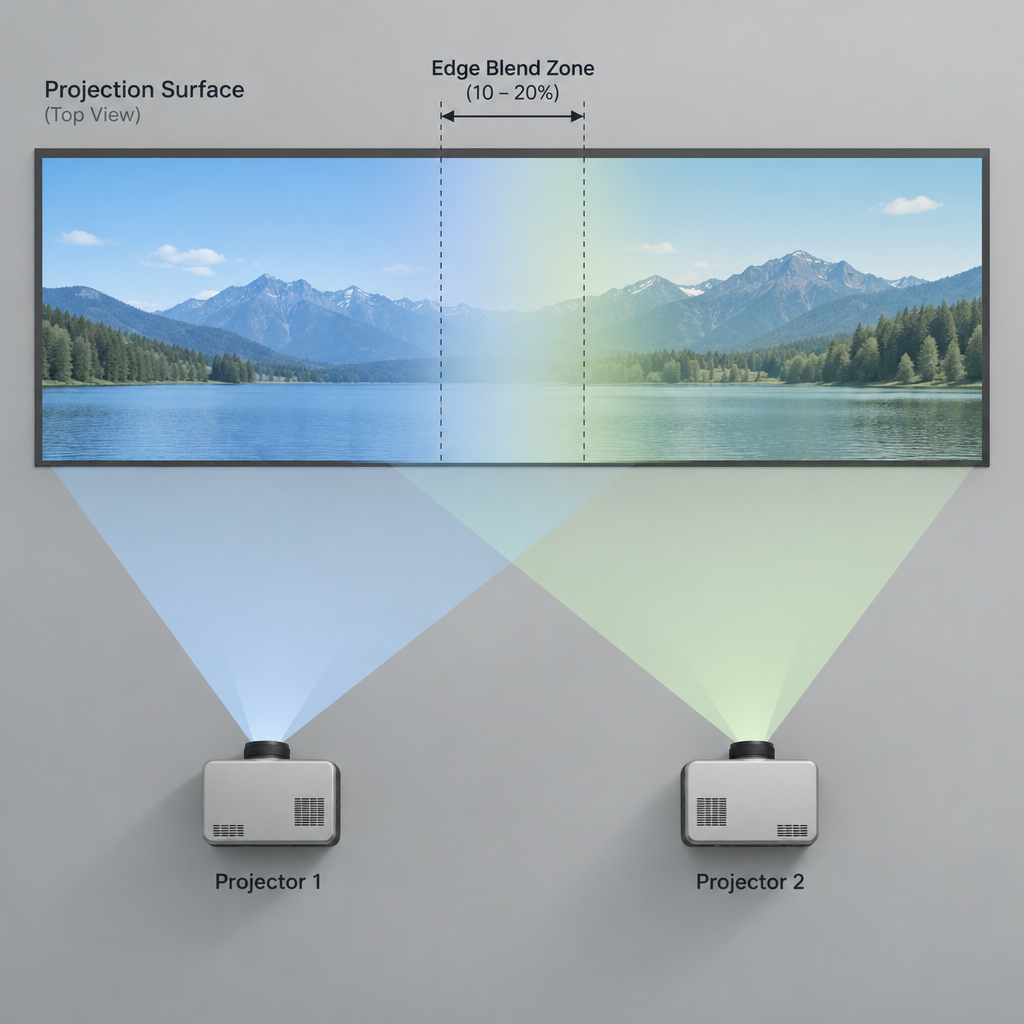
One projector rarely covers a building. When you use two or more, you overlap their images and use edge blending: a soft gradient that fades each projector out across the overlap zone so the seam disappears. Overlaps of roughly 10 to 20 percent of the image width are common. The gradient has to be gamma-corrected, because a straight linear fade leaves a visibly bright stripe where the two images add up.
Studio tip
Never use the projector’s built-in keystone correction for a mapped piece. It resamples the image inside the projector and softens it. Leave the projector’s geometry at zero and do all the warping in software, where you control the quality.
What you need before you start
Here’s the minimum kit for a first projector mapping project:
- A projector. Any projector works for learning. Brighter and higher resolution help later.
- A computer that can run your mapping software and play video smoothly.
- A video cable or adapter (HDMI is the usual choice) long enough to reach the projector’s position.
- Mapping software (see the table below; several options are free).
- A surface. Start with something simple: white boxes, a blank wall with a doorway, a folded paper sculpture.
- A way to lock the projector down. A sturdy shelf, a clamp, gaffer tape, or a tripod mount. If the projector moves a millimetre, your map breaks.
- A dark room, at least for your first go.
Mapping software compared
| Software | Platforms | Cost | Best for |
|---|---|---|---|
| Map Club | Web browser | Free | First experiments, quick corner pins |
| VPT (VideoProjectionTool) by HC Gilje | macOS, Windows | Free | Multi-layer mapping on a budget |
| TouchDesigner (Non-Commercial) | macOS, Windows | Free, capped at 1280×1280 output | Generative content, 3D mapping, interactivity |
| Processing + Keystone library | macOS, Windows, Linux | Free | Coders building custom pieces |
| openFrameworks + ofxPiMapper | Linux (Raspberry Pi), others | Free | Cheap permanent installations |
| HeavyM | macOS, Windows | Paid, with trial | Beginners who want built-in effects |
| MadMapper | macOS, Windows | Paid, with trial | Professional 2D mapping, LED and lights |
| Resolume Arena | macOS, Windows | Paid (mapping is in Arena, not Avenue) | VJs mapping live sets |
| Millumin | macOS | Paid | Theatre and stage shows |
| Disguise | Dedicated hardware | Enterprise | Stadium tours, large 3D mapping |
If you already use TouchDesigner, its Palette includes kantanMapper for drawing masks and quad shapes, and Stoner for keystone and mesh warping. Both are ready-made components you can drop into a network as a .tox file.
Choosing and placing your projector
Two numbers decide where your projector can go and how good your piece will look: throw ratio and brightness. Resolution matters too, but less than most beginners think.
Throw ratio: where the projector has to sit
Throw ratio is distance divided by image width. A 1.5:1 projector placed 4.5 m away makes a 3 m wide image. The formula is simply distance = throw ratio × image width.
| Throw ratio | Type | Distance for a 3 m wide image | Distance for a 10 m wide image |
|---|---|---|---|
| 2.0:1 | Long throw | 6.0 m | 20.0 m |
| 1.5:1 | Standard | 4.5 m | 15.0 m |
| 0.8:1 | Short throw | 2.4 m | 8.0 m |
| 0.5:1 | Short throw | 1.5 m | 5.0 m |
| 0.25:1 | Ultra short throw | 0.75 m | 2.5 m |
Measure your space before buying or renting anything. Many first projects fail because the only spot that gives the right image size is in the middle of where the audience stands.
Brightness: lumens spread over area
Projector brightness is quoted in ANSI lumens. What your audience sees depends on how far those lumens are spread. Divide lumens by the image area in square metres and you get lux, the illuminance on the surface, before you account for lens losses, eco modes and the colour of the surface.
| Projector output | Image size | Area | Illuminance on surface |
|---|---|---|---|
| 3,000 lm | 2 m × 1.25 m | 2.5 m² | 1,200 lux |
| 3,000 lm | 4 m × 2.5 m | 10 m² | 300 lux |
| 5,000 lm | 4 m × 2.5 m | 10 m² | 500 lux |
| 10,000 lm | 8 m × 5 m | 40 m² | 250 lux |
| 20,000 lm | 8 m × 5 m | 40 m² | 500 lux |
Doubling the image width quarters the brightness. That’s why outdoor building shows stack several high-output projectors on the same area, and why they wait until full dark. Surface colour has a big impact as well. A white plaster wall reflects far more light than red brick or dark wood, so the same projector looks dramatically different on each.
Resolution: how sharp the edges look
Resolution controls how fine your mapped edges can be. Spread the projector’s pixels across the surface and you get the physical size of each pixel.
| Resolution | Pixels | Aspect | Pixel size on a 4 m wide surface |
|---|---|---|---|
| WXGA | 1280 × 800 | 16:10 | 3.1 mm |
| 1080p (Full HD) | 1920 × 1080 | 16:9 | 2.1 mm |
| WUXGA | 1920 × 1200 | 16:10 | 2.1 mm |
| 4K UHD | 3840 × 2160 | 16:9 | 1.0 mm |
From a few metres back, a 2 mm pixel is invisible. Up close on a small sculpture, it can show as jagged mask edges. Feathering your masks by a pixel or two hides this, the same way antialiasing smooths edges in real-time graphics.
Starting a projection mapping project: 7 steps
Quick steps: your first projector mapping piece
- Pick and prepare a surface.
- Position and lock the projector.
- Connect and set the output.
- Build the map in software.
- Export a template.
- Create content to the template.
- Test, adjust and run it.
Step 1: Pick and prepare your surface
Choose something with clear geometry. Three or four cardboard boxes stacked at angles are the classic first project, because every face is a flat quad you can corner pin. Paint them matte white or light grey if you can. Glossy surfaces create hotspots that reflect the lens back at the viewer.
Step 2: Position and lock the projector
Place the projector so its image covers the whole object with a little spare around the edges. Point it as straight-on as you can; extreme angles waste pixels and stretch the image unevenly. Then fix it in place. Tape, clamp or bolt it, and don’t touch it again. Let the projector warm up for 15 minutes or so before you start mapping, since some lenses shift slightly as they heat.
Step 3: Connect and set the output
Plug the projector in as a second display, not a mirrored one. Set your computer’s output to the projector’s native resolution (check its spec sheet). Running a 1920×1200 projector at 1920×1080 means it rescales everything and your crisp edges go soft. Turn off the projector’s keystone, digital zoom and any “auto” picture modes.
Step 4: Build the map in your software
Open your mapping tool and send its output fullscreen to the projector. Add one layer, or “surface”, per face of your object. For each one, project a solid white or a test grid, then drag its corners until they sit exactly on the physical corners. Use masks for anything irregular. Work at the object, not at your laptop screen. A wireless mouse or a second person helps here.
Step 5: Export a template
Most tools can export the map as an image: a flat picture showing every surface’s shape and position in projector pixels. Some people photograph the object from the projector’s exact position instead. Either way, this template becomes the canvas for your content, so your video is designed to the real geometry from the start.
Step 6: Create content to the template
This is where the art happens. You can build content in a motion graphics app, render it in Blender or Cinema 4D, or generate it live in code. Generative tools suit mapping especially well because the content can respond to the surface in real time. A p5.js or Processing sketch can draw outlines that trace the edges of each face, flood fills that travel from one box to the next, or patterns that react to audio.
Content that plays with the object’s real edges almost always beats content that ignores them. Light a face, then the next one, then outline them all. Make one face “fall away” by drawing it in shadow. The audience reads the object as solid, so any change to its apparent shape feels physical.
Step 7: Test, adjust and run
Play the full piece on the object and watch from where the audience will stand. Look for light spilling past edges, seams between faces, and any surface that looks dimmer than the others. Adjust masks, tweak brightness per layer, and save your project file often, including a backup copy.
Heads up
Projectors running for hours need airflow. Never enclose one in a box without ventilation, and check the manufacturer’s rated orientation before mounting it sideways or pointing it straight up or down, since not every model supports it.
Common mistakes and how to fix them
The map drifts during the show. Someone bumped a table, or the projector’s own fan vibration walked it across a shelf. Mount it rigidly and keep cables taped down so nobody trips on one and pulls it.
Edges look soft or blurry. You’re probably using projector keystone, a non-native output resolution, or the lens is out of focus at the object’s depth. Focus on the middle of the object’s depth, not the front or back face.
Everything looks washed out. Too much ambient light, or the image is spread too wide for the projector’s output. Darken the room, shrink the image or add a brighter projector.
Video plays with stutters. Your content is heavier than the machine can decode. Use a codec built for playback (HAP is widely supported in mapping tools) instead of heavily compressed H.264 at high resolutions.
The screen goes to sleep mid-show. Turn off display sleep, screen savers and automatic updates on the show computer. Disable the projector’s auto power-off too.
Faces don’t line up after you restart. Saved maps depend on the projector not moving and the output resolution not changing. Check both before you assume the file is broken.
What to expect from your first piece
With a 3,000-lumen projector in a dark room and a stack of white boxes, a first project typically looks like this: crisp outlines on every face, solid colour fills that switch cleanly from box to box, and the strong illusion that the boxes themselves are emitting light. Setup and mapping take an hour or two. Content takes as long as you let it.
From there, the natural next moves are adding sound-reactive content, mapping a second object, trying a 3D-mapped sculpture, or moving to a larger surface with two blended projectors.
Try it live
This sketch shows corner pinning in miniature. Drag the four white handles and the animated pattern warps to fit, just as it would in mapping software. Press G to toggle a calibration grid, the same kind of test pattern you’d project while lining up corners. It uses bilinear interpolation, which is simpler than a true perspective homography but close enough to show the idea.
// Corner-pin demo: drag the four white handles to "map" the pattern
// onto an imaginary surface. Press G to switch to a calibration grid.

let corners = [];
let dragging = -1;
let showGrid = false;
const CELLS = 16;

function setup() {
  createCanvas(800, 600);
  // Start the corners in a slightly skewed shape, like a tilted wall
  corners = [
    createVector(200, 150), // top left
    createVector(600, 120), // top right
    createVector(640, 470), // bottom right
    createVector(170, 440)  // bottom left
  ];
}

// Find a point inside the warped shape.
// u runs left to right, v runs top to bottom, both from 0 to 1.
function warp(u, v) {
  let top = p5.Vector.lerp(corners[0], corners[1], u);
  let bottom = p5.Vector.lerp(corners[3], corners[2], u);
  return p5.Vector.lerp(top, bottom, v);
}

function draw() {
  background(8);
  let t = millis() / 1000;

  // Draw every cell of the warped grid
  for (let i = 0; i < CELLS; i++) {
    for (let j = 0; j < CELLS; j++) {
      let a = warp(i / CELLS, j / CELLS);
      let b = warp((i + 1) / CELLS, j / CELLS);
      let c = warp((i + 1) / CELLS, (j + 1) / CELLS);
      let d = warp(i / CELLS, (j + 1) / CELLS);

      if (showGrid) {
        // Calibration look: checkerboard with thin lines
        let on = (i + j) % 2 === 0;
        fill(on ? 230 : 40);
        stroke(255, 0, 0);
        strokeWeight(1);
      } else {
        // Show look: a diagonal wave of light moving across the surface
        let wave = sin(i * 0.6 + j * 0.4 - t * 3);
        let glow = map(wave, -1, 1, 15, 255);
        fill(glow * 0.25, glow * 0.7, glow);
        stroke(glow * 0.25, glow * 0.7, glow); // hides hairline seams
        strokeWeight(1);
      }
      quad(a.x, a.y, b.x, b.y, c.x, c.y, d.x, d.y);
    }
  }

  // Outline the mapped surface
  noFill();
  stroke(255);
  strokeWeight(2);
  beginShape();
  for (let p of corners) vertex(p.x, p.y);
  endShape(CLOSE);

  // Draw the draggable corner handles
  for (let k = 0; k < corners.length; k++) {
    let p = corners[k];
    fill(k === dragging ? color(255, 200, 0) : 255);
    stroke(0);
    strokeWeight(2);
    circle(p.x, p.y, 18);
  }

  // Instructions
  noStroke();
  fill(180);
  textSize(14);
  text("Drag the corners to fit the surface. Press G for a test grid.", 20, height - 20);
}

function mousePressed() {
  // Pick the first handle within 20 pixels of the mouse
  for (let k = 0; k < corners.length; k++) {
    if (dist(mouseX, mouseY, corners[k].x, corners[k].y) < 20) {
      dragging = k;
      return;
    }
  }
}

function mouseDragged() {
  if (dragging >= 0) {
    // Keep handles on the canvas
    corners[dragging].x = constrain(mouseX, 0, width);
    corners[dragging].y = constrain(mouseY, 0, height);
  }
}

function mouseReleased() {
  dragging = -1;
}

function keyPressed() {
  if (key === "g" || key === "G") showGrid = !showGrid;
}
Variations to try
- Add a second set of four corners so you can map two faces of a box independently.
- Replace the wave with outlines that trace only the surface edges, then animate their thickness.
- Swap the bilinear
warp()for a proper homography so straight lines stay straight under strong perspective. - Run the sketch fullscreen on a real projector and map it onto a book or a cardboard box on your desk.
FAQ
What is a projection map in simple terms?
It’s the layout that tells your software how to bend and cut video so it fits a real object. Each face of the object gets its own shape, and the software warps the content to match it.
Is projection mapping the same as 3D mapping?
3D mapping is one type of projection mapping. Simple projector mapping uses flat warped layers and masks. 3D mapping uses a digital model of the object and a virtual camera matched to the real projector, which allows lighting and depth effects that flat warping can’t fake.
Can I do projection mapping with a cheap projector?
Yes. A basic home projector is plenty for learning on boxes or a small sculpture in a dark room. Brightness becomes the limit once you go large or work with any ambient light.
Do I need to code to make projection mapping content?
No. Tools like HeavyM, MadMapper and Map Club let you map and add content with no code at all. Coding with p5.js, Processing or TouchDesigner gives you generative, reactive content that responds to the object live, which is why many artists pick it up.
How many projectors do I need for a building?
It depends on size, distance and brightness, so run the lumens-over-area maths from the tables above. Small facades can work with one powerful projector at night. Large buildings usually need several, edge-blended together, so each one covers a manageable area at a usable brightness.