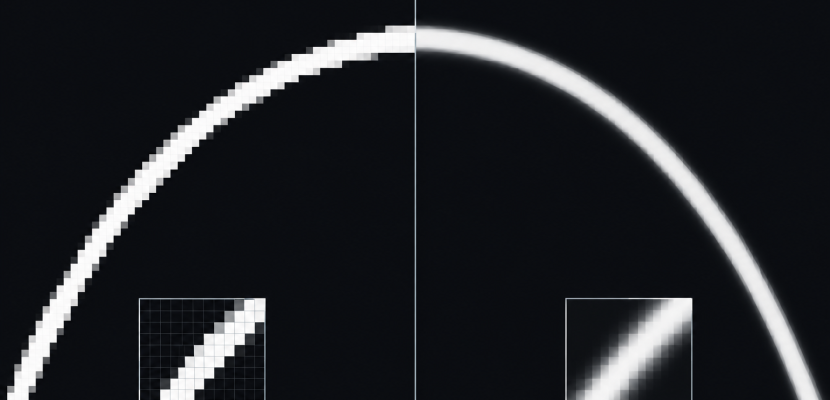
Anti-aliasing smooths the jagged, stair-stepped edges and shimmering patterns that appear when smooth shapes are squeezed onto a grid of square pixels. Every method does this by estimating how much of each pixel a shape covers, then blending colors to match. Below we compare nine real time techniques, from supersampling to FXAA, TAA and DLSS, and show how to switch anti-aliasing on in p5.js, Processing, three.js, TouchDesigner, openFrameworks and raw GLSL.
What aliasing actually is
A computer screen is a grid of samples. When we draw a circle, the renderer asks each pixel one question: is this pixel inside the shape? With one question per pixel, the answer is yes or no. A smooth curve becomes a staircase.
That staircase is called aliasing. The word comes from signal processing. When we sample a signal too sparsely, high frequencies pretend to be low frequencies. They take on a false identity, an alias.
The rule behind this is the Nyquist-Shannon sampling theorem, named after Harry Nyquist and Claude Shannon. It says we need at least two samples per cycle to capture a repeating pattern. A pixel grid samples once per pixel, so anything finer than two pixels per cycle cannot be represented. It does not vanish. It comes back as a wrong, coarser pattern.
Graphics researchers named the problem early. Franklin C. Crow’s 1977 paper “The Aliasing Problem in Computer-Generated Shaded Images” laid out why rendered images looked jagged and what filtering could do about it. Nearly fifty years later, every technique in this article is still a practical answer to his question.
Jaggies, shimmer, moiré and crawling
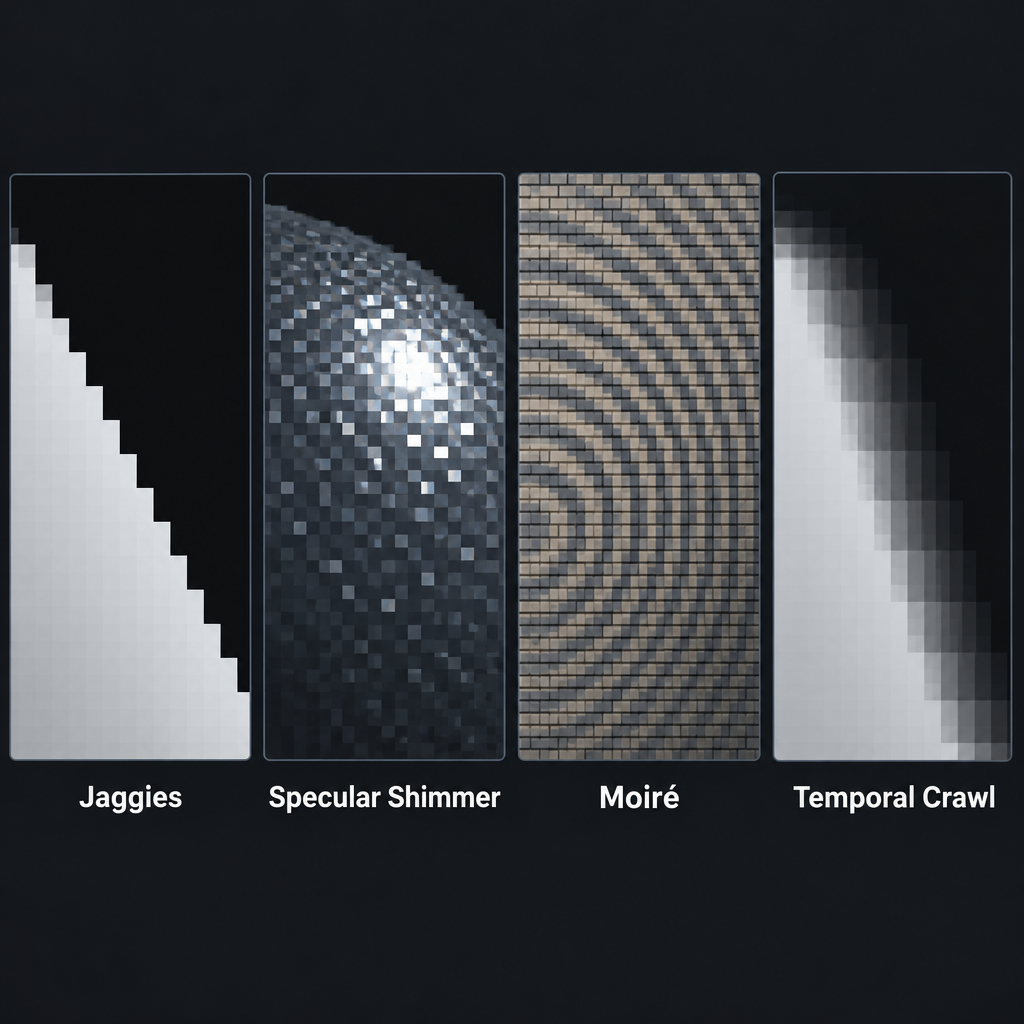
Aliasing shows up in four common forms, and it helps to name them because different techniques fix different ones.
- Geometric aliasing (jaggies). Stair steps along the edges of polygons, lines and shapes. This is the one most people mean when they say “anti alias”.
- Shading and specular aliasing. Tiny bright highlights on bumpy or shiny surfaces that flicker on and off between frames. Edge-based methods miss these entirely because there is no edge to find.
- Texture aliasing (moiré). Fine patterns such as brick walls, fabric or our own generative line fields turn into swirling interference bands when they shrink on screen.
- Temporal aliasing. Edges that crawl and shimmer as the camera moves, plus the wagon wheel effect, where fast spinning things appear to rotate backwards because the frame rate samples motion too slowly.
Creative coders run into all four. A dense field of thin lines driven by noise (the kind we build in our Perlin noise explained for creative coders piece) is a moiré generator waiting to happen. A spinning radial pattern at 60 frames per second is a wagon wheel demo whether we planned it or not.
The core idea: coverage instead of yes or no
Here is the whole concept in one sentence. Instead of asking “is this pixel inside the shape?”, we ask “how much of this pixel is inside the shape?”
If a black shape covers 30 percent of a white pixel, that pixel should be 30 percent of the way from white to black. The edge then reads as smooth to our eyes, even though it is still made of square pixels.
The ideal answer is the exact area of the shape inside each pixel, weighted by a filter. Computing that exactly is expensive for anything more complex than a triangle. So every practical anti-aliasing technique is an approximation. They differ in three ways:
- Where they take extra samples: more points inside each pixel, more points over time, or none at all.
- What they sample: geometry coverage only, or full shading for every sample.
- When they work: during rendering, or afterwards as a filter on the finished image.
Keep those three questions in mind and the alphabet soup of AA acronyms starts to make sense.
Types of anti-aliasing at a glance
| Technique | Family | Origin | Relative cost | Fixes well | Weak at |
|---|---|---|---|---|---|
| SSAA | Supersampling | Classic brute force | Very high | Everything | Performance |
| MSAA | Hardware multisampling | GPU feature since the early 2000s | Medium | Geometry edges | Shader and texture aliasing, alpha cutouts |
| CSAA / EQAA | MSAA variants | NVIDIA (2006) / AMD | Medium | Geometry edges, cheaper | Same gaps as MSAA |
| MLAA | Post-process | Intel, Alexander Reshetov, 2009 | Low | Edges in final image | Thin features, motion |
| FXAA | Post-process | NVIDIA, Timothy Lottes, around 2009 to 2011 | Very low | Edges, any renderer | Softens textures and text |
| SMAA | Post-process (plus optional samples) | Jimenez et al., 2012 | Low | Sharp, clean edges | Temporal shimmer in 1x mode |
| TAA | Temporal | Popularised by Brian Karis, Unreal Engine 4, 2014 | Low to medium | Shimmer, specular, edges | Ghosting, blur |
| DLSS / DLAA, FSR, XeSS | Temporal with ML or heuristics | NVIDIA 2018, AMD 2021, Intel 2022 | Varies | Quality plus performance | Vendor lock-in, artifacts |
| Shader AA (fwidth) | Analytic, per shader | Standard GLSL technique | Nearly free | Procedural shapes, SDFs | Needs per-effect work |
We’ll go through them roughly in historical order, because each one was invented to fix a problem with the one before.
Supersampling (SSAA): the brute force answer
Supersampling is the most honest method. Render the image at a higher resolution, then shrink it down. If we render at twice the width and twice the height, each final pixel averages four samples. That is 4x SSAA.
It fixes every kind of aliasing at once, because every sample runs the full shader. Geometry edges, specular sparkle, texture moiré and procedural patterns all get averaged. The quality is excellent.
The cost is just as honest. 4x SSAA means four times the pixels to shade and four times the memory for the render target. 16x means sixteen times. For a game running at 4K, that is unaffordable. For a generative piece we are exporting as a still for print, it is perfect.
Sample patterns matter
Where the extra samples sit changes the result. An ordered grid (samples in neat rows and columns) is simple, but it handles near-horizontal and near-vertical edges poorly, because several samples line up and cross the edge at the same moment.
A rotated grid tilts the sample pattern so each sample has a unique horizontal and vertical position. Near-vertical edges then get more distinct coverage levels from the same number of samples. Robert Cook’s 1986 paper “Stochastic Sampling in Computer Graphics” went further, arguing that randomly jittered samples trade the structured artifacts of aliasing for fine noise, which our eyes forgive much more readily. Offline renderers in film still lean on that idea.
Studio tip
For print exports from p5.js, call pixelDensity(4) before saving. The canvas renders four times the pixels on each axis, which is supersampling for free if we can wait a few seconds per frame.
Multisample anti-aliasing (MSAA): smarter supersampling
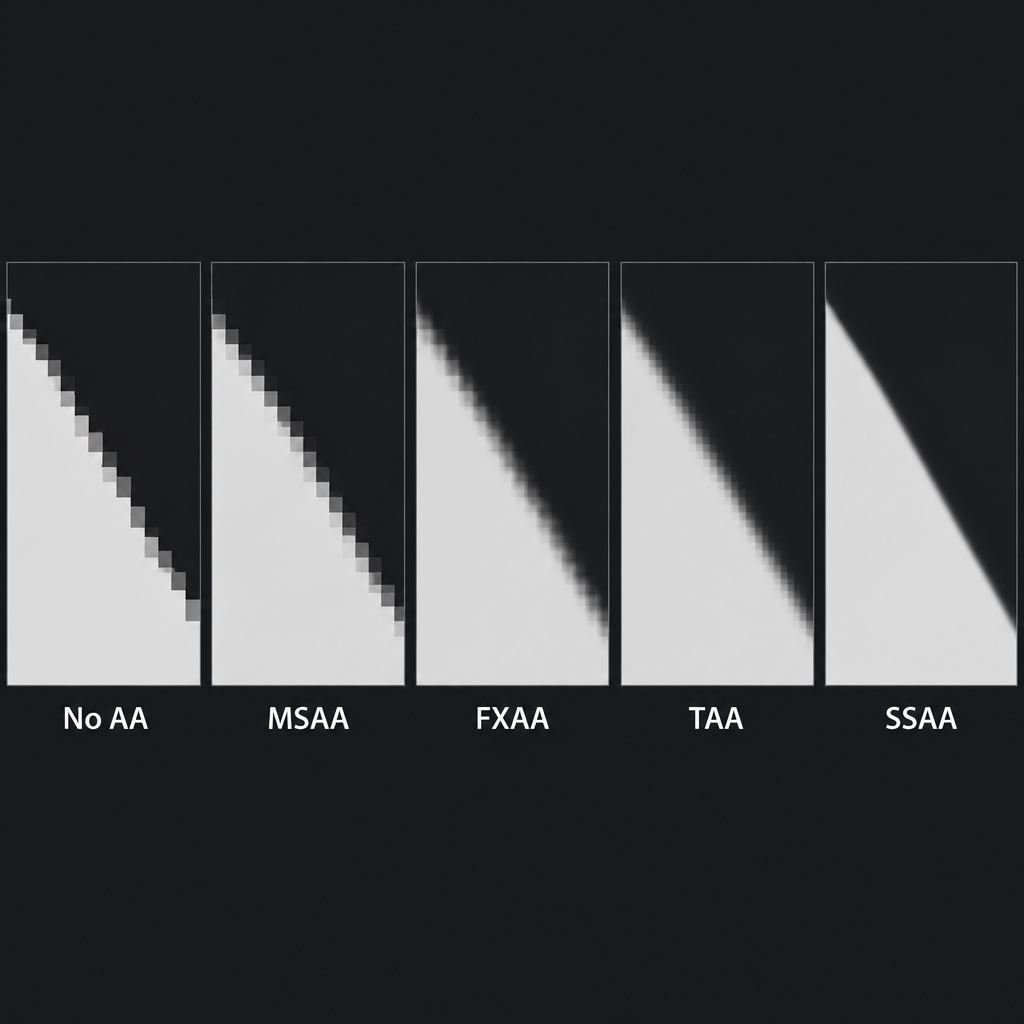
MSAA is the GPU industry’s answer to the cost of SSAA. The insight: jagged edges come from geometry coverage, so we only need extra samples for coverage and depth, not for color shading.
With 4x MSAA, the GPU stores four coverage and depth samples per pixel. When a triangle overlaps a pixel, the fragment shader runs once for that pixel, and the result is written to whichever of the four samples the triangle actually covers. At the end, a resolve step averages the samples into the final pixel.
The payoff is large. Edges look nearly as good as 4x SSAA, while the expensive part, the shader, runs about once per pixel per triangle. That is why MSAA was the default high-quality option in PC games for most of the 2000s, and it remains the standard for forward-rendered and VR content.
Where MSAA falls short
MSAA only smooths triangle edges. Three things slip through:
- Shader aliasing. A procedural stripe pattern or a sharp specular highlight in the middle of a triangle gets one shading sample per pixel, so it aliases exactly as before.
- Alpha-tested cutouts. Leaves, fences and hair cards drawn as quads with transparent texture regions have no geometric edge where the leaf ends. MSAA cannot see it.
- Deferred rendering. Engines that write surface data into G-buffers and light it later have to store every sample’s data, which multiplies memory and bandwidth. This is a major reason the industry drifted toward post-process and temporal methods in the 2010s.
NVIDIA’s CSAA (introduced with the GeForce 8 series in 2006) and AMD’s EQAA extended MSAA by storing more coverage samples than color samples, squeezing out a bit more edge quality per megabyte. Both are now niche.
Alpha to coverage
There is a neat fix for the cutout problem. Alpha to coverage converts a fragment’s alpha value into a coverage mask: 50 percent alpha switches on roughly half of the MSAA samples. Foliage edges then get the same smoothing as geometry, without the sorting headaches of true transparency. In raw WebGL it is a single call, gl.enable(gl.SAMPLE_ALPHA_TO_COVERAGE), and it only does something when the framebuffer is multisampled.
Heads up
MSAA multiplies framebuffer memory by the sample count. An 8x multisampled 4K render target with depth can eat hundreds of megabytes of VRAM, which matters on laptops and integrated GPUs.
Post-process anti-aliasing: MLAA, FXAA and SMAA
Around 2009, a different approach took over. Forget extra samples. Render the image normally, then run a filter over the finished frame that finds jagged edges and blurs along them.
MLAA
Intel researcher Alexander Reshetov published “Morphological Antialiasing” in 2009. MLAA scans the final image for discontinuities, classifies the shapes of the staircases it finds (L, Z and U patterns), and estimates the original edge that produced them. It then blends pixels along that estimated line. Because it only needs the final image, it works with deferred renderers and costs a fraction of MSAA.
FXAA
Timothy Lottes at NVIDIA developed Fast Approximate Anti-Aliasing, with the widely used FXAA 3 version appearing in 2011. FXAA is a single full-screen shader pass. For each pixel it checks local contrast in luminance. If contrast is high, it assumes an edge, estimates its direction, and samples along it to blend.
FXAA’s appeal is that it is tiny, fast and renderer agnostic. It runs on almost anything and costs a fraction of a millisecond on modern GPUs at 1080p. That is why it ended up in so many games and why three.js ships an FXAAShader in its examples.
The downside is that FXAA cannot tell a geometric edge from a sharp texture detail. It softens text, fine patterns and crisp UI. For generative art with deliberate hard lines, it can look slightly smeared.
SMAA
Subpixel Morphological Anti-Aliasing was published in 2012 by Jorge Jimenez, Jose I. Echevarria, Tiago Sousa and Diego Gutierrez. It refines the morphological idea with better edge detection, smarter pattern handling and sharper results than FXAA. Its higher modes can combine with a couple of MSAA samples or a temporal component to handle subpixel features and shimmer.
In practice, SMAA 1x gives cleaner, crisper edges than FXAA at a small extra cost. It is a strong choice for creative coding projects that want smooth edges without TAA’s blur. three.js includes an SMAAPass in its postprocessing examples.
What all post-process methods share
Post-process anti-aliasing only sees the final image at its final resolution. It cannot recover detail that fell between pixels. A line thinner than a pixel that breaks into dashes cannot be repaired by any edge filter, because the information is gone. And since every frame is processed independently, edges can still crawl as things move.
Temporal anti-aliasing (TAA)
Temporal anti-aliasing gets extra samples from time instead of space. Each frame, the renderer shifts the camera’s projection by a tiny subpixel offset, a jitter. Over several frames, each pixel has effectively been sampled at many different positions. Blend the current frame with the accumulated history and we get supersampling quality spread across time.
Brian Karis’s 2014 SIGGRAPH talk “High Quality Temporal Supersampling”, describing the approach in Unreal Engine 4, became the reference for how to make this practical. TAA is now the default in Unreal, in Unity’s HDRP and in most modern games.
The hard part: motion
If nothing moves, TAA is easy. When things move, last frame’s pixel is in a different place. TAA uses motion vectors to reproject the history buffer, finding where each pixel used to be. Then it clamps the history color to the range of the current frame’s neighbouring pixels, so stale data from a disoccluded region does not bleed through.
When this goes wrong, we see the signature TAA artifacts:
- Ghosting: faint trails behind moving objects.
- Blur: a general softness, especially in motion, because history is always a blend.
- Smearing on things without motion vectors: particles, transparent effects and scrolling textures.
Many games pair TAA with a sharpening filter to claw back detail. Players who dislike TAA usually dislike exactly this softness.
TAA in generative work
For creative coding, TAA is a mixed bag. It is excellent at killing the sparkle of thin lines and procedural detail in a moving 3D scene. It is terrible for pieces built on hard, fast cuts, flicker, or feedback loops, because it smears exactly what we want to be crisp. Our rule: use it for slow, camera-driven 3D scenes, avoid it for graphic, high-contrast motion.
Upscalers and ML anti-aliasing: DLSS, DLAA, FSR and XeSS
The newest generation reframes the problem. If temporal accumulation can recover detail from jittered frames, why not render at a lower resolution and reconstruct a higher one? That is temporal upscaling, and anti-aliasing comes along for free.
- NVIDIA DLSS arrived with the RTX 20 series in 2018. From DLSS 2 onward it uses a neural network trained on high-quality reference images to decide how to blend jittered history, which handles ghosting and fine detail better than hand-tuned TAA heuristics. It needs NVIDIA RTX hardware with Tensor cores.
- NVIDIA DLAA (2021) runs the same model at native resolution, with no upscaling. It is anti-aliasing only, at a higher cost, aimed at the best possible image.
- AMD FSR started in 2021 as FSR 1, a purely spatial upscaler. FSR 2 (2022) moved to temporal reconstruction and runs on GPUs from multiple vendors. Its earlier versions are open source, which makes it the most accessible of the three for developers.
- Intel XeSS launched in 2022 with an ML-based temporal approach. It runs best on Intel Arc GPUs and has a fallback path for other hardware.
For game players, these settings are often the best balance of performance and quality available today. For creative coders working in the browser, they are mostly out of reach: none of them ship as a drop-in for WebGL. The ideas still matter, because a hand-rolled TAA pass in three.js or TouchDesigner follows the same jitter, reproject and blend recipe.
Texture aliasing: mipmaps and anisotropic filtering
Edges are only half the story. When a detailed texture is drawn small, many texels map to one pixel. Sampling just one of them produces moiré and sparkle.
The fix dates to Lance Williams’s 1983 paper “Pyramidal Parametrics”, which introduced mipmapping. The idea: precompute a chain of smaller versions of the texture, each half the size of the last. The GPU picks the level whose texel size best matches the pixel size, so each sample is already an average of the right area.
Trilinear filtering blends between two mip levels to avoid visible seams. Anisotropic filtering goes further for surfaces viewed at steep angles, such as a road stretching away from the camera, taking several samples along the direction where the texture is squashed. It keeps floors and roads sharp without moiré, and on modern GPUs 16x anisotropic filtering costs very little.
In three.js, mipmaps are generated automatically for most textures, and we can set texture.anisotropy to renderer.capabilities.getMaxAnisotropy(). In WebGL 1, mipmaps require power-of-two texture sizes, which still catches people out with images loaded from arbitrary sources.
Shader anti-aliasing with fwidth and smoothstep
Here is where creative coders get the biggest win for the least effort. When we draw shapes procedurally in a fragment shader, using signed distance functions, stripes or grid lines, no hardware anti-aliasing touches them. MSAA sees no triangle edge. FXAA blurs them indiscriminately.
The fix is analytic: compute coverage directly in the shader. We know the distance to the edge. We just need to know how big a pixel is in the same units.
GLSL gives us that through screen-space derivatives. fwidth(d) returns how much the value d changes from one pixel to the next, the sum of the absolute horizontal and vertical derivatives. If we fade from inside to outside over that width, the edge spans roughly one pixel at any zoom level.
#version 300 es
precision highp float;

in vec2 vUv;
out vec4 fragColor;

void main() {
  // Signed distance to a circle of radius 0.3 centred in the quad.
  // Negative inside, positive outside.
  float d = length(vUv - 0.5) - 0.3;

  // How much d changes across one pixel.
  float w = fwidth(d);

  // Fade from fully inside to fully outside across about one pixel.
  float coverage = 1.0 - smoothstep(-w, w, d);

  vec3 paper = vec3(0.96);
  vec3 ink   = vec3(0.08);
  fragColor = vec4(mix(paper, ink, coverage), 1.0);
}
Compare this with the naive version, step(d, 0.0), which gives a hard yes or no and produces jagged edges. The smoothstep version costs one derivative and a few multiplies, and it stays correct when we zoom, scale or animate the shape.
In GLSL ES 1.00 (WebGL 1), fwidth needs the line #extension GL_OES_standard_derivatives : enable at the top of the fragment shader. In GLSL ES 3.00 (WebGL 2), it is built in.
Quick steps: anti-alias a procedural edge
- Write the shape as a signed distance d.
- Compute w = fwidth(d).
- Use smoothstep(-w, w, d) instead of step.
- Mix the two colors with the result.
Stripes and repeating patterns
The same trick works for repeating patterns, with a twist. When stripes become thinner than a pixel, even perfect edges will moiré, because the pattern frequency has passed the Nyquist limit. The fix is to fade the pattern toward its average color as fwidth grows. If w is larger than the stripe width, return mid-grey. This is a cheap form of what mipmapping does for textures, and it turns ugly moiré into a calm tone.
We find this matters most for generative grid and line work. AI coding assistants also tend to leave it out: if we are prototyping shaders through vibe coding, it is worth checking the generated code for bare step calls and swapping in the fwidth pattern.
Getting the blend right: gamma and linear light
This is the angle most anti-aliasing explainers skip, and it visibly changes the result.
Screen colors are stored in sRGB, which is a non-linear encoding. A pixel value of 128 is not half the light of 255; it is closer to a fifth. When we average sample colors in sRGB space, a pixel that is 50 percent covered comes out too dark. Thin white lines on black look thinner and dimmer than they should, and edges get a subtle ropey texture as they rotate.
The correct approach is to blend in linear light. Convert colors to linear (roughly raising them to the power 2.2), average them, then convert back. Modern game engines do this by rendering into linear, high-precision buffers. GPUs resolve MSAA in linear space when the framebuffer format is sRGB-aware.
In creative coding tools, we often get sRGB blending by default. Canvas 2D in browsers blends in sRGB, as does p5.js’s 2D renderer. The difference is easiest to see with light lines on a dark background. The live sketch at the end of this article has a key to toggle between the two so we can see it.
Temporal aliasing in generative animation
Anti-aliasing usually means space, but generative animators fight aliasing in time just as often. A shape that jumps 40 pixels per frame looks like a strobe. A radial pattern rotating near the frame rate appears to stand still or spin backwards.
The temporal equivalent of supersampling is motion blur by subframe accumulation. For each output frame, render the scene several times at slightly different moments within that frame’s time slice, then average them. Eight subframes per frame turns a jerky strobe into smooth motion.
This is expensive, so it suits offline renders: loops exported as video or GIF, not live installations. For live work, we get most of the benefit by keeping motion slow relative to the frame rate, avoiding patterns whose rotation speed lines up with it, and using TAA or a cheap feedback blur where the look allows.
Projection is another place temporal and spatial aliasing combine. When we warp an image onto a building or object, the warp resamples every pixel, and fine lines can break up or shimmer. Anyone setting up projection mapping benefits from rendering content with soft, anti-aliased edges and avoiding single-pixel lines that the warp will chew up.
Performance impact
Costs depend heavily on resolution, GPU and renderer, so treat this as a guide to relative weight, not a benchmark.
| Method | Shading cost | Memory cost | Typical use |
|---|---|---|---|
| None | 1x | 1x | Pixel art, max frame rate |
| Shader AA (fwidth) | About 1x | 1x | Procedural shapes and SDFs |
| FXAA | 1x plus one cheap pass | About 1x | Low-end GPUs, quick fixes |
| SMAA 1x | 1x plus three passes | Small extra buffers | Crisp edges on a budget |
| TAA | 1x plus one pass | History buffer, motion vectors | Modern 3D, moving cameras |
| MSAA 4x | Close to 1x shading | Around 4x framebuffer | Forward rendering, VR, WebGL |
| SSAA 4x | 4x | 4x | Stills, exports, small canvases |
| DLSS / FSR / XeSS (upscaling) | Below 1x | Extra buffers | Hitting frame rate at high res |
Two patterns stand out. Post-process and temporal methods keep cost roughly flat as scenes get more complex, which is why games adopted them. Supersampling’s cost scales with every pixel and every shader instruction, which is why it is mostly a tool for stills and small canvases.
In the browser, fill rate is often the real bottleneck. A full-window canvas on a high-DPI display can already be pushing millions of pixels per frame. Adding MSAA on top can tip integrated laptop GPUs from 60 frames per second to 30. We always test installation pieces on the actual machine that will run them.
Switching anti-aliasing on in creative coding tools
Here is how to control anti-aliasing in the tools we use most. All of them are free, with TouchDesigner offering a free non-commercial licence.
p5.js
In the default 2D renderer, shapes are anti-aliased by the browser’s canvas and we cannot turn that off. smooth() and noSmooth() in 2D mode control image smoothing: noSmooth() makes scaled-up images stay blocky, which is exactly what pixel art needs. If you are new to the library, our article What is p5.js and why artists love it covers the basics first.
In WEBGL mode, smooth() and noSmooth() switch the WebGL antialias context attribute, which requests MSAA on the main canvas. Changing it rebuilds the WebGL context, so set it once at the top of setup().
function setup() {
  createCanvas(600, 400, WEBGL);
  // Ask the browser for a multisampled WebGL canvas.
  setAttributes('antialias', true);
  pixelDensity(2); // more pixels per CSS pixel also reduces visible jaggies
}

function draw() {
  background(240);
  rotateY(frameCount * 0.01);
  box(150);
}
Note the spelling: the parameter is antialias, all one word, as it is in the underlying WebGL API. The browser treats it as a request. Some devices and browsers will quietly decline.
Processing
Processing’s smooth() takes a level. According to the Processing reference, the default renderer uses smooth(3), which is bicubic smoothing, while P2D and P3D default to smooth(2), meaning 2x anti-aliasing. We can ask for more with smooth(4) or smooth(8) in P2D and P3D. noSmooth() turns it off.
void settings() {
  size(800, 600, P3D);
  smooth(8);  // 8x multisampling, if the GPU supports it
}

void draw() {
  background(240);
  translate(width / 2, height / 2);
  rotateY(frameCount * 0.01);
  box(200);
}
In Processing 3 and later, smooth() and size() belong in settings() if we are not calling them as the very first lines of setup().
three.js
three.js requests MSAA on the canvas when we create the renderer. It must be set at creation; we cannot toggle it later without making a new renderer.
import * as THREE from 'three';

const renderer = new THREE.WebGLRenderer({ antialias: true });
renderer.setPixelRatio(window.devicePixelRatio);
renderer.setSize(window.innerWidth, window.innerHeight);
document.body.appendChild(renderer.domElement);
Once we add postprocessing with EffectComposer, the scene renders into an offscreen target and the canvas’s MSAA no longer applies. Two fixes: give the render target samples (for example samples: 4 on a WebGLRenderTarget, which needs WebGL 2), or add a post-process pass. The FXAA pass looks like this:
import { EffectComposer } from 'three/addons/postprocessing/EffectComposer.js';
import { RenderPass } from 'three/addons/postprocessing/RenderPass.js';
import { OutputPass } from 'three/addons/postprocessing/OutputPass.js';
import { ShaderPass } from 'three/addons/postprocessing/ShaderPass.js';
import { FXAAShader } from 'three/addons/shaders/FXAAShader.js';

const composer = new EffectComposer(renderer);
composer.addPass(new RenderPass(scene, camera));
composer.addPass(new OutputPass()); // tone mapping and sRGB before FXAA

const fxaa = new ShaderPass(FXAAShader);
const pr = renderer.getPixelRatio();
fxaa.material.uniforms['resolution'].value.set(
  1 / (window.innerWidth * pr),
  1 / (window.innerHeight * pr)
);
composer.addPass(fxaa);

// In the animation loop, call composer.render() instead of renderer.render().
FXAA expects a display-ready image, so it goes after the OutputPass. The three.js examples also include SMAAPass, TAARenderPass and SSAARenderPass if we want to compare.
TouchDesigner
In TouchDesigner, the Render TOP has an Anti-Alias parameter with sample counts from 1x up to 32x, depending on the GPU. Higher values use more graphics memory. For 2D TOP networks, there is no geometry to multisample, so we either render at a higher resolution and downscale with a Fit or Resolution TOP, or anti-alias edges in a GLSL TOP using the fwidth pattern above.
Heads up
TouchDesigner’s free non-commercial licence caps output at 1280 by 1280. Supersampling by rendering larger and scaling down runs into that limit fast.
openFrameworks
openFrameworks sets the multisample count when the window is created, in main.cpp:
#include "ofMain.h"
#include "ofApp.h"

int main() {
  ofGLFWWindowSettings settings;
  settings.setSize(1280, 720);
  settings.numSamples = 8;   // MSAA samples for the main window
  ofCreateWindow(settings);
  return ofRunApp(new ofApp());
}
For offscreen work, ofFbo::Settings also has a numSamples field, so a multisampled FBO can be resolved and drawn like any texture. ofEnableAntiAliasing() and ofDisableAntiAliasing() toggle multisampling at runtime, and ofEnableSmoothing() affects line smoothing.
Which option should we pick?
Here are our defaults after a lot of trial and error.
- 2D generative work in p5.js or Processing: stick with the built-in smoothing. Add pixelDensity(2) or higher for exports. Align 1 pixel strokes to half-pixel coordinates (x = 10.5) when we want them crisp.
- Procedural shaders and SDF art: analytic anti-aliasing with fwidth and smoothstep, every time. Nothing else is as cheap or as sharp.
- Simple 3D scenes in three.js or p5 WEBGL: canvas MSAA with antialias: true. Add samples on render targets once postprocessing is involved.
- Heavy 3D with postprocessing: SMAA for crisp edges, TAA if the camera moves slowly and the scene has lots of fine detail.
- Still images for print: supersample. Render big, downscale with a good filter.
- Games on a PC: DLAA or DLSS on NVIDIA RTX hardware, FSR or XeSS elsewhere, TAA as the fallback, FXAA only if the GPU is struggling.
When to turn anti-aliasing off
Sometimes jaggies are the point. Pixel art, retro aesthetics, dithering experiments and bitmap fonts all want hard pixel edges. Anti-aliasing would turn them into a blurry mess.
For that look, draw at low resolution and scale up with nearest neighbour filtering. In p5.js, noSmooth() before drawing a scaled image keeps pixels square. In CSS, image-rendering: pixelated does the same for the canvas element itself. In three.js, set texture.magFilter and texture.minFilter to THREE.NearestFilter.
Hardware projects are another case. LED matrices, small OLED screens and other displays driven by microcontrollers often have so few pixels that anti-aliasing just reads as dim, muddy edges. In most of our Arduino projects for artists and interactive installations, crisp on-or-off pixels look better.
FAQ
What does anti alias mean?
To anti alias an image is to reduce the jagged, stair-stepped edges and shimmering that appear when smooth shapes are sampled onto a pixel grid. It works by estimating how much of each pixel a shape covers and blending colors in proportion, so edges look smooth to the eye.
Is antialias the same as anti-aliasing?
Yes. Antialias, anti-alias and anti-aliasing all refer to the same idea. Programming APIs tend to spell it as one word: WebGL’s antialias context attribute, three.js’s antialias renderer option and p5.js’s setAttributes(‘antialias’, true).
Which anti-aliasing is best?
For image quality alone, supersampling is the best, but it is very expensive. For real time 3D today, DLAA or a well-tuned TAA gives the best balance. For procedural shader art, analytic anti-aliasing with fwidth beats everything on both quality and cost.
Does anti-aliasing hurt performance?
It depends on the method. FXAA and shader-based anti-aliasing cost very little. MSAA costs mostly memory and bandwidth. SSAA multiplies the work by the sample count. Upscalers like DLSS and FSR can actually raise frame rates because they render fewer pixels.
Why do my thin lines still shimmer with anti-aliasing on?
Lines thinner than a pixel carry detail above the Nyquist limit. Edge filters such as FXAA cannot recover detail that fell between samples. Make lines at least about one pixel wide, fade fine patterns toward their average color as they shrink, or use supersampling or TAA.
Why does FXAA make my text blurry?
FXAA detects edges by luminance contrast and cannot tell a polygon edge from a sharp letterform or texture detail. It softens everything with high contrast. Draw text and UI after the FXAA pass, or switch to SMAA, which preserves sharp detail better.
Try it live
This sketch draws the same scene on a grid of large “fat pixels” so aliasing is easy to see. Left of the red divider, each fat pixel takes one sample at its centre. Right of it, each fat pixel averages a grid of samples, which is supersampling. Watch the jagged ring, the flickering starburst and the false moiré rings in the outer pattern calm down on the right. Move the mouse to slide the divider, press 1 to 4 to change the sample grid, and press G to toggle gamma-correct blending.
// Supersampling demo on a grid of big "fat pixels".
// Left of the divider: one sample per fat pixel (aliased).
// Right of the divider: an n by n grid of samples per fat pixel (anti-aliased).
// Move the mouse to slide the divider. Press 1-4 to change n. Press G for gamma.

const CELL = 8;          // size of one fat pixel on screen
let cols, rows;
let n = 4;               // samples per axis on the right-hand side
let t = 0;               // animation time
let gammaCorrect = false;

function setup() {
  createCanvas(800, 480);
  cols = width / CELL;
  rows = height / CELL;
  noStroke();
  textFont('monospace');
}

// The scene. Returns 1 for ink and 0 for paper.
// x and y are measured in fat-pixel units.
function scene(x, y) {
  const dx = x - cols / 2;
  const dy = y - rows / 2;
  const r = sqrt(dx * dx + dy * dy);

  // A ring with a crisp edge: shows classic jaggies.
  if (r > 24 && r < 27) return 1;

  // A spinning starburst: wedges get thinner than a pixel near the centre.
  if (r < 22) {
    const a = atan2(dy, dx);
    return sin(a * 36 + t) > 0 ? 1 : 0;
  }

  // A zone plate: rings get closer together as r grows.
  // Past the Nyquist limit they turn into false, moving moire rings.
  return sin(r * r * 0.04 - t * 2) > 0 ? 1 : 0;
}

// Turn coverage (0 to 1) into a grey value.
function shade(cover) {
  const paper = 245;
  const ink = 20;
  if (!gammaCorrect) {
    // Blend directly in sRGB values, like most 2D canvases do.
    return lerp(paper, ink, cover);
  }
  // Convert to linear light, blend, then convert back to sRGB.
  const a = pow(paper / 255, 2.2);
  const b = pow(ink / 255, 2.2);
  return 255 * pow(lerp(a, b, cover), 1 / 2.2);
}

function draw() {
  t += 0.02;

  // Before the mouse moves, put the divider in the middle.
  const mx = mouseX > 0 ? mouseX : width / 2;
  const split = constrain(floor(mx / CELL), 0, cols);

  for (let j = 0; j < rows; j++) {
    for (let i = 0; i < cols; i++) {
      let cover;
      if (i < split) {
        // One sample at the centre of the fat pixel.
        cover = scene(i + 0.5, j + 0.5);
      } else {
        // n by n evenly spaced samples inside the fat pixel.
        let sum = 0;
        for (let sy = 0; sy < n; sy++) {
          for (let sx = 0; sx < n; sx++) {
            sum += scene(i + (sx + 0.5) / n, j + (sy + 0.5) / n);
          }
        }
        cover = sum / (n * n); // fraction of the fat pixel that is ink
      }
      fill(shade(cover));
      rect(i * CELL, j * CELL, CELL, CELL);
    }
  }

  // The divider line.
  stroke(230, 70, 50);
  strokeWeight(2);
  line(split * CELL, 0, split * CELL, height);
  noStroke();

  // Labels with a dark backing so they stay readable.
  fill(0, 170);
  rect(0, 0, width, 26);
  fill(255);
  textSize(14);
  text('1 sample', 10, 18);
  text(n * n + ' samples  |  keys 1-4', width - 250, 18);
  text(gammaCorrect ? 'G: linear blend' : 'G: sRGB blend', width / 2 - 60, 18);
}

function keyPressed() {
  if (key >= '1' && key <= '4') n = int(key);
  if (key === 'g' || key === 'G') gammaCorrect = !gammaCorrect;
}
Variations to try: replace the ordered sample grid with random offsets inside each fat pixel and notice how structured moiré turns into fine noise, which is Cook’s stochastic sampling idea. Make CELL smaller to watch aliasing shrink toward what we see on a real screen. Or swap the scene function for one of your own patterns and see which parts break first.