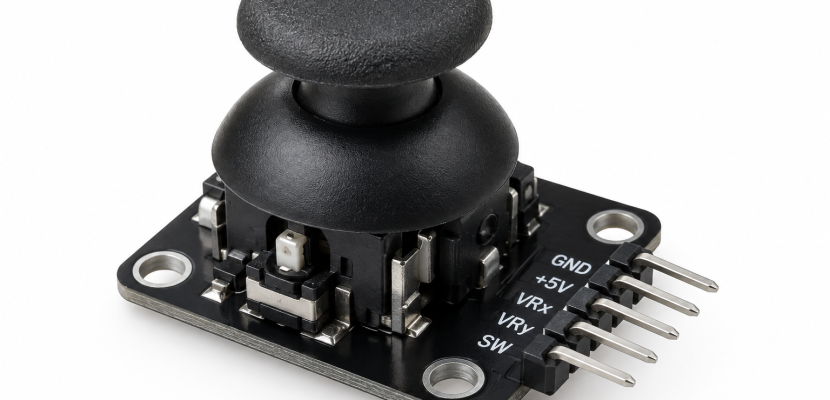
An analog joystick is a spring-centred stick that reports how far and in which direction you push it, not just whether you pushed it. Inside most thumb joysticks sit two potentiometers set at right angles, one per axis, plus a push button under the shaft. That gives an Arduino two smooth voltages and one switch to play with.
This piece explains how the hardware works and how cheap thumb modules differ from industrial sticks. It then walks through Arduino code that handles calibration, deadzones and response curves properly. The live sketch at the end lets you feel those settings with your mouse before you solder anything.
What an analog joystick actually is
A joystick is a lever that pivots around a centre point. An analog joystick measures that pivot as a continuous value on two axes, usually called X and Y. Push the stick a little to the right and X rises a little. Push it hard against the edge and X hits its maximum.
The output is proportional, and that is the whole point. A digital stick, like the one on an old Atari 2600 or an arcade cabinet, is a set of switches. It can tell you “up” or “up-left,” and nothing in between.
For artists, proportional control is where the expression lives. You can ease a particle system from a drift to a sprint, sweep a filter slowly, or nudge a camera across a projection a few pixels at a time. A button can’t do any of that.
You’ll find analog joysticks in more places than game controllers:
- Game controllers. Sony’s DualShock (1997) made twin analog thumbsticks standard. The Nintendo 64 controller (1996) and the Vectrex console (1982) both had analog sticks before that.
- Mobility devices. Power wheelchairs are driven with a proportional joystick.
- Heavy machinery. Excavators, cranes, forestry equipment and other off-highway vehicles use rugged multi-axis sticks.
- Camera and robotics control. Pan-tilt heads, camera cranes and underwater ROVs all rely on fine, proportional input.
- Your workbench. The two-dollar thumb module in every Arduino starter kit is the same idea, made small.
Inside the stick: gimbal, potentiometers and a button
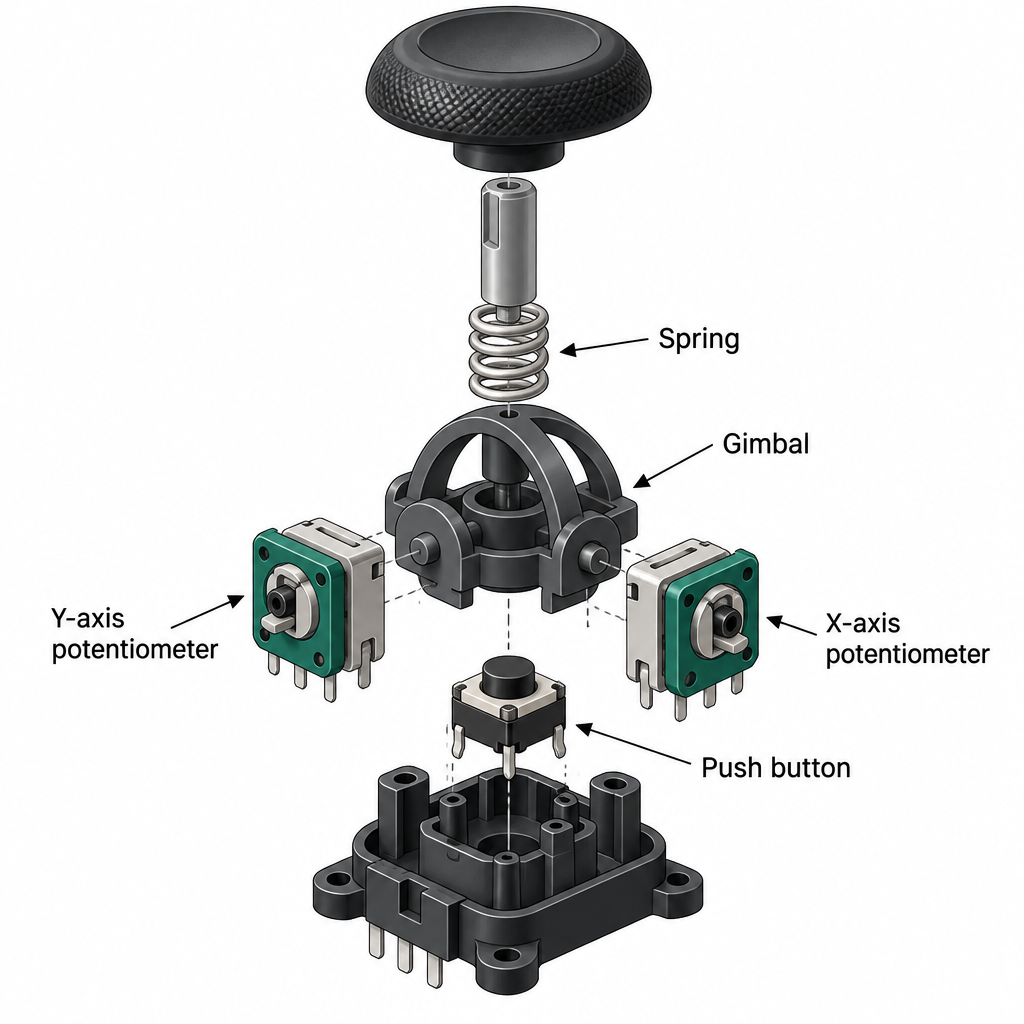
Pop the cap off a typical thumb joystick and you’ll see a small mechanism with three jobs. It lets the shaft tilt in any direction, it splits that tilt into two separate rotations, and it springs the shaft back to the middle when you let go.
The splitting is done by two slotted arches, often called a gimbal. One arch rotates only when the stick moves left and right. The other rotates only for forward and back. Each arch turns the wiper of its own potentiometer.
A potentiometer is a resistive track with three pins. The two outer pins go to ground and your supply voltage. The middle pin, the wiper, slides along the track and outputs a voltage somewhere between the two. At centre, the wiper sits roughly halfway, so you read about half your supply.
The button is usually a small tactile switch under the base. Pressing straight down on the stick closes it. On a game controller, that’s the “L3” or “R3” click.
Thumb joystick modules (KY-023 and friends)
The module most people meet first is sold under the name KY-023, or simply “dual-axis joystick module.” It’s a PS2-style thumbstick soldered to a small breakout board with five pins:
| Pin label | What it does | Connect to (5 V Arduino) |
|---|---|---|
| GND | Ground for both pots and the button | GND |
| +5V | Supply for the pots | 5V |
| VRx | X-axis wiper voltage | A0 |
| VRy | Y-axis wiper voltage | A1 |
| SW | Push button, shorts to ground when pressed | Digital pin 2 |
The pots on these modules are typically 10 kΩ. SparkFun and Adafruit both sell breakout versions of very similar thumbsticks, and replacement sticks for console controllers use the same basic layout.
These modules are cheap, easy and good enough for prototypes and many finished pieces. They are not precise. You’ll fix most of their quirks in code, which is what the bulk of this article covers.
What the numbers look like
On an Arduino Uno, analogRead() returns a 10-bit number from 0 to 1023. With a KY-023 on 5 V, you’ll see something like this:
- Resting: each axis sits near 512, but rarely exactly. Readings between about 490 and 530 are normal, and they drift slightly every time the stick returns.
- Full left or up: close to 0.
- Full right or down: close to 1023.
- Noise: the last digit or two jitters even when nobody touches it.
Many cheap modules reach 0 or 1023 before the stick hits the edge of its travel. The last few degrees of movement produce no change. You’ll feel this as a flat spot at the extremes, and it also means the corners read as fully on for both axes.
Potentiometer, Hall effect or TMR: how the position gets sensed
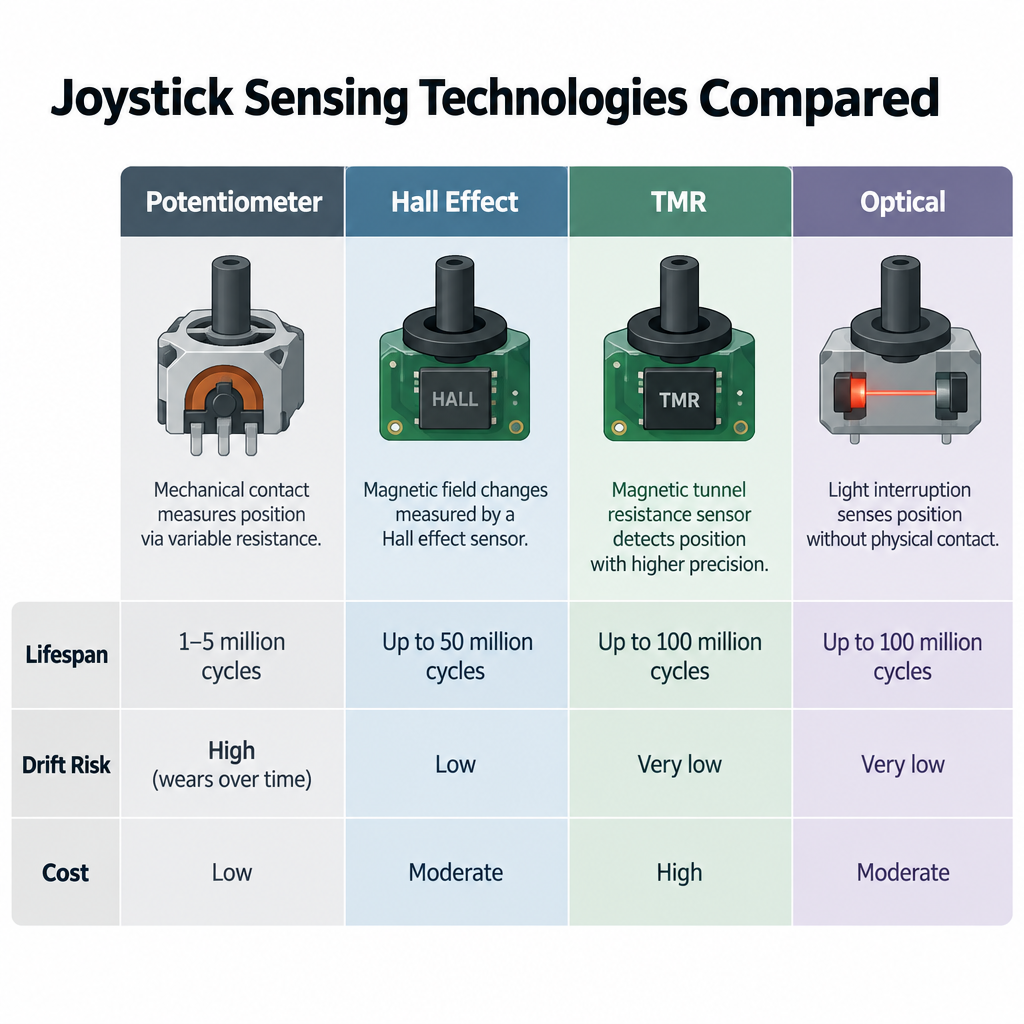
Not every analog joystick uses potentiometers. The sensing method decides how long the stick lasts, how much it drifts and how much it costs.
| Sensing method | How it works | Strengths | Weaknesses |
|---|---|---|---|
| Potentiometer | A wiper rubs along a resistive track | Cheap, simple, plugs straight into an analog pin | Wears with use, dust causes jitter and drift |
| Hall effect | A magnet on the shaft moves past a Hall sensor | Contactless, very long life, stable centre | Costs more, sensor needs power, can be thrown off by nearby magnets |
| TMR (tunnel magnetoresistance) | A magnetoresistive sensor reads the magnet’s field angle | Contactless, low power, high resolution | Newer, fewer hobby breakouts |
| Inductive | Coils sense a moving metal target | Extremely robust, used in harsh industrial settings | Expensive, mostly industrial parts |
| Optical | A slotted wheel interrupts light to an encoder | No track wear | Bulkier, more complex to read |
The Nintendo 64 stick is the famous optical example. It used slotted wheels and light sensors rather than pots.
Potentiometer wear is the source of “stick drift,” where a controller registers movement nobody made. Drift in Nintendo’s Joy-Con controllers became widespread enough to prompt a class action lawsuit in the US in 2019. Since then, a wave of third-party gamepads has advertised Hall effect or TMR sticks as the fix.
For a gallery piece that runs eight hours a day for a month, that matters. A potentiometer thumbstick in public hands will start to jitter eventually. A Hall effect stick costs more up front and usually outlives the show.
Analog vs digital joysticks
People mix these up constantly, especially when shopping for arcade parts.
Digital joysticks use microswitches. A classic arcade stick like the Sanwa JLF or a Happ competition stick has four switches arranged around the shaft. A square or octagonal gate limits travel so you can hit one or two switches at a time. To the Arduino, each switch is just a button on a digital pin.
Analog joysticks give you a range of values per axis. They need analog input pins or an external ADC (analog-to-digital converter).
Pick a digital stick when the gesture is inherently on/off: choosing between scenes, navigating a menu, triggering samples. Pick analog when the movement itself should shape the result: speed, intensity, pitch, steering, camera moves.
You can also fake one with the other. Threshold an analog stick and you get a digital one. Going the other way is much harder, so if you’re unsure, buy analog.
Picking an analog joystick controller for your project
“Analog joystick controller” can mean anything from a bare thumbstick to a finished USB flight stick. Here’s how the main options compare for creative work.
| Type | Typical use | Feel | Wiring effort | Durability in public |
|---|---|---|---|---|
| Thumb module (KY-023 style) | Prototypes, desk pieces, workshops | Light, small throw | Minimal | Low |
| Console replacement thumbstick | Custom gamepads, compact builds | Familiar, tight | Needs a breakout or careful soldering | Low to medium |
| Hall effect thumbstick | Long-running handheld pieces | Similar to console sticks | Breakout needed | Medium to high |
| Panel-mount fingertip joystick | Control desks, camera rigs | Precise, weighted | Screw terminals or flying leads | High |
| Industrial lever joystick | Installations people grab hard | Heavy, long throw | Datasheet reading required | Very high |
| Off-the-shelf USB gamepad or flight stick | Fast prototyping, no soldering | Varies | None, read it as a game controller | Medium |
Two questions settle most choices.
First, how will people hold it? A thumbstick suits a handheld object. A visitor standing at a plinth wants something they can wrap a hand around. A panel-mount fingertip stick sits between the two and suits operator desks for live visuals.
Second, how long does it need to last? A weekend workshop can run on modules. A six-week installation where children are the main audience needs a stick built for abuse.
Off-the-shelf USB gamepads deserve a mention. Browsers can read them through the Gamepad API, TouchDesigner has a Joystick CHOP, and Processing has community libraries for game controllers. If you don’t need a custom shape, a gamepad gets you two analog sticks, triggers and a dozen buttons with no wiring at all.
Industrial joysticks: what the spec sheets mean
Search for analog joysticks and half the results are industrial catalogues. These are the sticks on cranes, agricultural vehicles, medical devices and defence consoles. They’re expensive, often running into hundreds per unit, but for a public installation they’re worth understanding.
Mechanical data worth reading
Industrial datasheets list numbers a hobby module never mentions. These are the ones that matter for art builds:
- Operating angle. How far the lever tilts from centre, in degrees. A longer throw gives finer control and a calmer feel.
- Gate shape. Round, square, cross (single axis at a time) or custom. A square gate lets the stick reach full deflection on both axes at once.
- Operating and breakout force. How hard you have to push to move it, and how much force the mechanism survives before damage. Breakout force tells you whether someone leaning on it will snap it.
- Mechanical life. Rated in cycles, often in the millions for contactless designs.
- Sealing. Expressed as an IP rating. IP65 resists dust and splashes, IP67 survives temporary immersion. Outdoor work and spilled drinks both make this relevant.
- Handle options. Plain knobs, ergonomic grips, multi-button handles with trigger switches and a thumb roller. Many manufacturers offer configurable handles.
Outputs and safety
Industrial sticks rarely output a raw potentiometer track. Common output options include:
- Analog voltage. Often ratiometric, meaning the output scales with the supply, or a fixed range such as 0.5 to 4.5 V. The offset from 0 V lets the controller detect a broken wire, because a reading of exactly 0 V shouldn’t occur.
- Redundant outputs. Two independent sensors per axis, sometimes with one signal inverted. Machinery compares them and stops if they disagree.
- PWM. Position encoded as a pulse width.
- CAN bus. Common on vehicles and mobile machinery, using protocols such as CANopen or SAE J1939.
- USB HID. The stick appears to a computer as a game controller. For artists this is the friendliest option by far.
If you buy a 0.5 to 4.5 V analog stick, it wires to an Arduino much like a module does. Just map 0.5 V and 4.5 V to your minimum and maximum instead of 0 and 5 V. A USB HID industrial joystick skips the Arduino entirely and plugs into your laptop.
Who makes them
The names you’ll run into include APEM, Curtiss-Wright’s Penny+Giles brand, OTTO, CTI Electronics, MEGATRON Elektronik, Traxsys, and Parker’s electronic controls group. Distributors such as Althen carry ranges from several makers. Many build to order, so the single listed part is often just a starting point for a configuration.
For an installation, you don’t need the CAN bus or the redundant tracks. You want a robust mechanism, a sealed body and a simple analog or USB output. Ask for that directly when you contact a supplier.
Wiring an Arduino joystick
With a KY-023 module and an Uno, the wiring takes five jumper wires.
Quick steps: wire a thumb joystick to an Arduino Uno
- Connect the module’s GND to Arduino GND.
- Connect +5V to the Arduino 5V pin.
- Connect VRx to A0 and VRy to A1.
- Connect SW to digital pin 2.
- Upload the raw-reading sketch below and open the Serial Monitor at 115200 baud.
You don’t need a resistor on the button. The Arduino has internal pull-up resistors, and INPUT_PULLUP enables them. The pin then reads HIGH normally and LOW when the button is pressed.
Because the pots are ratiometric, powering them from the same 5 V the Arduino uses as its analog reference is a good thing. If the USB supply sags to 4.8 V, both the joystick output and the ADC reference sag together, so your readings stay steady.
5 V boards vs 3.3 V boards
Plenty of modern boards run at 3.3 V: the ESP32 family, the Raspberry Pi Pico, the Arduino Nano 33 series and most Feather boards. Power the joystick from 3.3 V on these, never 5 V.
Heads up
Many 3.3 V boards, including the ESP32 and Pico, are not 5 V tolerant on their analog pins. Feeding them a joystick powered at 5 V can damage the chip.
Resolution differs by board too:
- Arduino Uno R3, Nano, Mega, Leonardo: 10-bit, 0 to 1023.
- Arduino Uno R4: defaults to 10-bit for compatibility, and
analogReadResolution(14)unlocks its 14-bit ADC. - ESP32: 12-bit, 0 to 4095. Its ADC is noticeably non-linear near the top and bottom of the range. On the original ESP32, ADC2 pins stop working while Wi-Fi is on, so use ADC1 pins for the joystick.
- Raspberry Pi Pico: a 12-bit ADC on GP26, GP27 and GP28. In the Arduino core for the Pico, you set the resolution with
analogReadResolution(12).
The code below uses an ADC_MAX constant so you can switch boards by changing one number.
Running out of analog pins
An Uno has six analog inputs, A0 to A5, which covers three joysticks. For a desk of controls, add either a 16-channel analog multiplexer such as the CD74HC4067, or an I2C ADC like the ADS1115. The ADS1115 gives you four extra 16-bit channels per chip, and you can put several on one I2C bus.
Arduino joystick code, step by step
The goal is a clean pair of numbers from -1 to 1 for each axis, plus a button state. Everything downstream, from p5.js to TouchDesigner, is easier when the Arduino does that cleanup.
Step 1: read the raw values
Start here to confirm your wiring works and to see what your particular stick does.
// Raw joystick test: prints x, y and button state
const int PIN_X = A0;
const int PIN_Y = A1;
const int PIN_SW = 2;

void setup() {
  Serial.begin(115200);
  pinMode(PIN_SW, INPUT_PULLUP);  // button reads LOW when pressed
}

void loop() {
  int x = analogRead(PIN_X);
  int y = analogRead(PIN_Y);
  bool pressed = (digitalRead(PIN_SW) == LOW);

  Serial.print(x);
  Serial.print(',');
  Serial.print(y);
  Serial.print(',');
  Serial.println(pressed ? 1 : 0);
  delay(20);
}
Open the Serial Plotter instead of the Monitor and you’ll see two lines that jump when you move the stick. Note your resting values, and check whether pushing right raises or lowers X. Modules vary, and some have one axis reversed relative to the label.
Step 2: find the real centre
Hard-coding 512 as centre leaves your output slightly off, which shows up as a slow creep when you use the stick to move something. The fix is to measure the resting position at startup, while nobody is touching the stick.
You also need to normalise each half of the travel separately. If centre is 530, the left half spans 530 counts and the right half spans 493. Dividing both by 512 means one side never quite reaches full scale.
Step 3: add a radial deadzone
A deadzone is a small area around centre where the output is forced to zero. Without one, sensor noise and the imperfect spring return make the output wobble when the stick is at rest.
Most beginner code uses an axial deadzone, clamping X and Y independently. That creates a cross-shaped dead area. Diagonal movements feel sticky, and the stick snaps to the axes at low deflection.
A radial deadzone works on the distance from centre instead. It’s a circle, so small movements in any direction behave the same. Then you rescale so the output starts at 0 at the deadzone’s edge, rather than jumping straight to 0.08. That rescaling is the difference between a stick that feels cheap and one that feels considered.
Step 4: smooth the jitter
An exponential moving average is the simplest smoother that works. Each frame, the output moves a fraction of the way toward the new reading. A fraction of 0.25 is a good start. Lower values feel calmer but laggier.
Here’s the complete calibrated sketch, combining steps 2 to 4:
// Calibrated analog joystick: centre detection, radial deadzone, smoothing
// Prints x and y from -1.000 to 1.000, then the button state

const int PIN_X = A0;
const int PIN_Y = A1;
const int PIN_SW = 2;
const int ADC_MAX = 1023;      // 4095 on ESP32 or a 12-bit Pico

const float DEADZONE = 0.08;   // 8 percent of full travel
const float SMOOTH = 0.25;     // 1.0 means no smoothing

int centerX = ADC_MAX / 2;
int centerY = ADC_MAX / 2;
float sx = 0, sy = 0;

void setup() {
  Serial.begin(115200);
  pinMode(PIN_SW, INPUT_PULLUP);
  delay(200);  // let the stick settle before measuring

  // Average 32 readings to find the resting position
  long ax = 0, ay = 0;
  for (int i = 0; i < 32; i++) {
    ax += analogRead(PIN_X);
    ay += analogRead(PIN_Y);
    delay(5);
  }
  centerX = ax / 32;
  centerY = ay / 32;
}

// Scale each side of centre on its own so both reach -1 and 1
float normalise(int raw, int center) {
  if (raw >= center) return (float)(raw - center) / (ADC_MAX - center);
  return (float)(raw - center) / center;
}

void loop() {
  float x = normalise(analogRead(PIN_X), centerX);
  float y = normalise(analogRead(PIN_Y), centerY);

  // Radial deadzone with rescaling
  float mag = sqrt(x * x + y * y);
  if (mag < DEADZONE) {
    x = 0;
    y = 0;
  } else {
    float clamped = mag > 1.0f ? 1.0f : mag;  // corners can exceed 1
    float scaled = (clamped - DEADZONE) / (1.0f - DEADZONE);
    x = x / mag * scaled;
    y = y / mag * scaled;
  }

  // Exponential moving average
  sx += (x - sx) * SMOOTH;
  sy += (y - sy) * SMOOTH;

  bool pressed = (digitalRead(PIN_SW) == LOW);
  Serial.print(sx, 3);
  Serial.print(',');
  Serial.print(sy, 3);
  Serial.print(',');
  Serial.println(pressed ? 1 : 0);
  delay(10);
}
The clamp on mag handles the corner problem from earlier. Because cheap modules hit full scale on both axes at the diagonals, the raw magnitude there can reach about 1.41. Clamping keeps diagonal movement from being faster than straight movement.
The explicit 1.0f comparison is deliberate. Some Arduino cores define min() as a template that refuses to compare a float with a double, so this version compiles everywhere.
Step 5: shape the response curve
A linear stick gives you the same sensitivity everywhere. That’s often wrong for art. You usually want fine control near centre for subtle moves, and full range at the edge for dramatic ones.
Radio-control pilots solve this with “expo,” a blend between a linear and a cubic curve:
// expo = 0 is linear, expo = 1 is a full cubic curve
float applyExpo(float v, float expo) {
  return v * (1.0f - expo) + v * v * v * expo;
}

// In loop(), after the deadzone:
// x = applyExpo(x, 0.5);
// y = applyExpo(y, 0.5);
Because v * v * v keeps the sign of v, this works for negative values without extra code. At an expo of 0.5, half deflection gives an output of about 0.31 instead of 0.5, while full deflection still gives 1.0.
Studio tip
Apply expo to the magnitude rather than to X and Y separately when you care about diagonals. Per-axis expo bends diagonal motion toward the axes, which looks odd when the stick steers a brush or camera.
Getting the stick into your software
The sketch above prints lines like 0.412,-0.087,0. Every creative coding tool can parse that.
p5.js via Web Serial
In Chrome and Edge, the Web Serial API lets a browser sketch talk to an Arduino directly. Browsers only allow the port picker to open in response to a user gesture, so connect on a click:
let jx = 0, jy = 0, jb = false;
let connected = false;

async function connect() {
  const port = await navigator.serial.requestPort();
  await port.open({ baudRate: 115200 });
  const reader = port.readable.pipeThrough(new TextDecoderStream()).getReader();
  connected = true;
  let buffer = '';
  while (true) {
    const { value, done } = await reader.read();
    if (done) break;
    buffer += value;
    const lines = buffer.split('n');
    buffer = lines.pop();  // keep the unfinished line for next time
    for (const line of lines) {
      const parts = line.trim().split(',');
      if (parts.length === 3) {
        jx = parseFloat(parts[0]);
        jy = parseFloat(parts[1]);
        jb = parts[2] === '1';
      }
    }
  }
}

function mousePressed() {
  if (!connected) connect();
}
Drop that into a p5.js sketch and read jx, jy and jb inside draw(). Firefox and Safari don’t support Web Serial, so test in a Chromium browser. Close the Arduino IDE’s Serial Monitor first, because only one program can hold the port.
Processing and TouchDesigner
In Processing, the built-in processing.serial library does the same job. Create a Serial object, call bufferUntil('n'), and parse each line in serialEvent() with split() and float().
In TouchDesigner, add a Serial DAT, set its Port to your Arduino and its Baud Rate to 115200. Convert the incoming text to channels with a DAT to CHOP, then use a Filter CHOP if you want extra smoothing on the TouchDesigner side. From there you can export the channels straight to transform parameters. That’s an easy way to give a performer live control of a mesh during projection mapping.
Make the Arduino a USB device
Boards with native USB can skip serial entirely and appear to the computer as a mouse, a game controller or a MIDI device. That includes the Leonardo and Micro (ATmega32U4), the Uno R4 and many SAMD boards. Your software then reads the stick with no parsing code.
The built-in Mouse library turns a joystick into a pointer:
// Joystick as a USB mouse (Leonardo, Micro, Uno R4 and other native-USB boards)
#include <Mouse.h>

const int PIN_X = A0;
const int PIN_Y = A1;
const int PIN_SW = 2;
const int PIN_ENABLE = 3;  // tie to GND to enable, leave open to disable

void setup() {
  pinMode(PIN_SW, INPUT_PULLUP);
  pinMode(PIN_ENABLE, INPUT_PULLUP);
  Mouse.begin();
}

void loop() {
  if (digitalRead(PIN_ENABLE) == HIGH) return;  // safety switch is off

  int x = analogRead(PIN_X) - 512;
  int y = analogRead(PIN_Y) - 512;
  if (abs(x) < 40) x = 0;
  if (abs(y) < 40) y = 0;
  Mouse.move(x / 64, y / 64, 0);

  bool pressed = (digitalRead(PIN_SW) == LOW);
  if (pressed && !Mouse.isPressed(MOUSE_LEFT)) Mouse.press(MOUSE_LEFT);
  if (!pressed && Mouse.isPressed(MOUSE_LEFT)) Mouse.release(MOUSE_LEFT);
  delay(10);
}
The enable pin is there for a reason. A miscalibrated stick can drag your real cursor around nonstop, which makes it hard to click Upload and fix the problem.
For a proper game controller, Matthew Heironimus’s ArduinoJoystickLibrary makes a 32U4 board appear as a USB gamepad with configurable axes and buttons. Browsers can then read it through the Gamepad API, and TouchDesigner can read it with a Joystick CHOP.
For music software, Arduino’s MIDIUSB library sends control change messages:
#include <MIDIUSB.h>

void controlChange(byte channel, byte control, byte value) {
  midiEventPacket_t event = {0x0B, (uint8_t)(0xB0 | channel), control, value};
  MidiUSB.sendMIDI(event);
  MidiUSB.flush();
}

// In loop(), send only when the value changes:
// byte cc = analogRead(A0) >> 3;   // 0 to 1023 becomes 0 to 127
// if (cc != lastCC) { controlChange(0, 1, cc); lastCC = cc; }
Shifting right by three bits divides by eight, squeezing 10-bit readings into MIDI’s 7-bit range. Sending only on change keeps the MIDI stream from flooding your DAW.
Mapping a stick to art: three ideas that work
Two numbers from -1 to 1 can drive almost anything. These mappings make the most of what an analog joystick does well.
Polar mapping: angle and magnitude
Treat the stick as a direction and a strength instead of two separate axes. atan2(y, x) gives the angle, and sqrt(x*x + y*y) gives the magnitude. Map the angle to hue and the magnitude to saturation, and the stick becomes a physical colour wheel.
This also suits radial compositions, kaleidoscopes, and anything where rotation feels more natural than left and right.
Position control vs velocity control
There are two fundamentally different ways to use a stick.
Position control maps the stick directly to a location: stick at full right, object at the right edge. It feels immediate but it’s twitchy, and the object snaps back to centre when you let go.
Velocity control maps the stick to speed: stick at full right, object moving right fast. The object stays where you leave it. That’s how game characters move and how the live sketch below works.
Velocity control almost always needs the deadzone, because any offset at rest becomes a slow creep. If your piece drifts by itself, that’s the first thing to check.
A good middle ground is to use velocity control with eased acceleration. Pushing a noise field’s offsets around this way is a classic first experiment, and the stick turns it into something you can steer. If you haven’t built one yet, a Perlin noise tutorial is the place to start.
The stick as an instrument
A joystick gives you two continuous controls under one thumb, plus a gate. Map X to pitch, Y to filter cutoff, and the button to note on. Because the stick springs back, letting go becomes a gesture in its own right: a return to silence or to a root note.
It plays more like a theremin than a keyboard. You shape sound through continuous movement rather than discrete keys, but the spring gives you something the theremin doesn’t: a physical “home” you can find without looking.
Building controllers that survive the public
An installation joystick lives a hard life. People yank it, lean on it, twist it and spill on it. Children treat it as a lever to see what breaks. Plan for that before opening night.
- Mount the stick, not the board. Thumb modules have flimsy PCB-mounted sticks. Bolt the module to a rigid plate and let the cap come through a hole, so lateral force hits the enclosure rather than the solder joints.
- Use a dust boot. A rubber boot around the shaft keeps grit out of potentiometer tracks. Industrial sticks often ship with one.
- Relieve the cable strain. Use a cable gland or a zip tie anchored to the enclosure, so a tug on the cable doesn’t pull the wires off the pins.
- Recalibrate on demand. Wire a hidden button that reruns the centring routine, or recalibrate whenever the stick sits still for a minute.
- Keep analog runs short. Long unshielded cables pick up noise. If the stick is far from the computer, put the Arduino next to the stick and send the cleaned values over USB, serial or the network.
- Plan for failure. Detect readings stuck at 0 or the maximum and fall back to an idle animation, so a broken stick doesn’t leave a frozen piece on the wall.
Our article on Arduino projects for artists covers enclosures, power and long-running stability in more depth. Those habits matter more than the joystick itself.
Design for different hands
The Xbox Adaptive Controller (2018) is worth studying even if you never use one. Microsoft designed it with gamers with limited mobility, and it accepts external switches through 3.5 mm jacks and joysticks over USB. It shows how much an input device improves when you stop assuming a standard grip.
For your own pieces, consider larger knobs, a lighter return spring, mounting heights that work from a wheelchair, and support for a second input method. A stick a visitor can operate with a palm, an elbow or a chin reaches more people than a thumbstick ever will.
Troubleshooting common joystick problems
| Symptom | Likely cause | Fix |
|---|---|---|
| Object drifts slowly when nobody touches it | Centre isn’t 512, no deadzone | Calibrate at startup, add a radial deadzone |
| Output jumps by several counts at rest | Electrical noise or a worn track | Smooth in code, add a 0.1 µF capacitor from each wiper to GND, shorten wires |
| Readings stuck at 0 or the maximum | Loose wire, wrong pin, or no supply to the pots | Check the +5V and GND connections first |
| Button always reads pressed | Missing pull-up | Use INPUT_PULLUP in pinMode |
| One axis moves backward | Module orientation | Negate that axis in code |
| Diagonals move faster than straight lines | Square output from a round stick | Clamp the magnitude to 1 |
| Flat spot at the edges | Pot hits full scale before end of travel | Accept it, or map a slightly smaller range to full output |
| ESP32 readings bunched at the ends | Non-linear ADC | Calibrate the extremes, or use an external ADC such as the ADS1115 |
Variations to try
Once the basic Arduino joystick works, these extensions are each an evening’s work:
- Two sticks, two hands. Wire a second module to A2 and A3. Use one for movement and one for rotation, or give two visitors one stick each.
- Gesture recording. Record stick values into an array while the button is held, then loop them back as automation.
- Wireless stick. Put the joystick on an ESP32 with a battery and send values over Wi-Fi as OSC messages to TouchDesigner or Max.
- Haptic feedback. Add a small vibration motor driven through a transistor. Pulse it when the stick crosses an invisible boundary in your scene.
- Snap-to-grid mode. Hold the button to quantise the angle to eight directions, turning your analog stick into a digital one on demand.
FAQ
What is an analog joystick?
An analog joystick is a spring-centred lever that outputs a continuous value for each axis instead of simple on/off signals. Most hobby versions use two potentiometers at right angles, so pushing the stick changes two voltages that an Arduino reads with analogRead().
How do I connect a joystick to an Arduino?
Connect GND to GND and +5V to 5V (or 3.3V on a 3.3 V board). Wire VRx to A0, VRy to A1, and SW to a digital pin set to INPUT_PULLUP. Read the axes with analogRead() and the button with digitalRead(), where LOW means pressed.
Why doesn’t my joystick read exactly 512 at rest?
Cheap potentiometers and springs aren’t precise, so the resting position varies slightly between modules and even between returns to centre. Measure the real centre at startup and use a deadzone rather than assuming 512.
What’s the difference between analog and digital joysticks?
A digital joystick uses switches and only reports directions, such as up or down-left. An analog joystick reports how far the stick moves in each direction, which allows smooth, proportional control.
Are Hall effect joysticks better than potentiometer joysticks?
For durability, yes. Hall effect sticks measure a magnet without physical contact, so they don’t wear the way a potentiometer track does and are far less prone to drift. Potentiometer sticks are cheaper and perfectly fine for prototypes and short projects.
Can an Arduino joystick work as a game controller or mouse?
Yes, with a board that has native USB, such as the Leonardo, Micro or Uno R4. The built-in Mouse library turns the stick into a pointer, and ArduinoJoystickLibrary makes the board appear as a USB gamepad. An Uno R3 can’t do this directly, so send values over serial instead.
Which software is free for working with joystick input?
p5.js, Processing and the Arduino IDE are all free and open source. TouchDesigner has a free non-commercial licence with a resolution cap, which is enough for learning and most experiments.
Try it live
This sketch is a virtual analog joystick. Drag the knob with your mouse and let go to watch it spring back. It uses the same radial deadzone and expo curve as the Arduino code, and the processed output steers a brush on the right using velocity control. Use the arrow keys to change the deadzone and expo, and press the space bar as the stick’s button. If you’re new to the library, our explainer on what p5.js is and why artists love it covers the basics.
// A virtual analog joystick you drag with the mouse.
// It applies the same radial deadzone and expo curve as the Arduino code,
// then uses velocity control to steer a brush across the canvas.

let knob;              // knob offset from the stick's centre, in pixels
let base;              // centre of the virtual stick
let dragging = false;
let gateR = 90;        // radius of the stick's travel
let deadzone = 0.12;   // fraction of travel treated as zero
let expo = 0.5;        // 0 is linear, 1 is a full cubic curve
let brush;             // position of the brush the stick drives
let hueNow = 190;

function setup() {
  createCanvas(800, 500);
  colorMode(HSB, 360, 100, 100, 100);
  knob = createVector(0, 0);
  base = createVector(130, height / 2);
  brush = createVector(530, height / 2);
  background(230, 30, 12);
}

function draw() {
  // Fade the drawing area slowly so the brush leaves trails
  noStroke();
  fill(230, 30, 12, 6);
  rect(260, 0, width - 260, height);

  // Redraw the control panel cleanly each frame
  fill(230, 25, 20);
  rect(0, 0, 260, height);

  // Follow the mouse while dragging, spring back to centre when released
  if (dragging) {
    knob.set(mouseX - base.x, mouseY - base.y);
    knob.limit(gateR);
  } else {
    knob.mult(0.8);
  }

  // Raw reading from -1 to 1, like normalised analogRead values
  let raw = createVector(knob.x / gateR, knob.y / gateR);
  let out = shapeInput(raw);

  // Velocity control: the stick sets speed, not position
  brush.x = constrain(brush.x + out.x * 6, 272, width - 12);
  brush.y = constrain(brush.y + out.y * 6, 12, height - 12);
  let speed = out.mag();
  fill(hueNow, 30 + speed * 70, 100, 85);
  circle(brush.x, brush.y, 6 + speed * 26);

  drawStick(raw, out);
}

// Radial deadzone with rescaling, then an expo curve on the magnitude
function shapeInput(v) {
  let m = v.mag();
  if (m < deadzone) return createVector(0, 0);
  let scaled = (min(m, 1) - deadzone) / (1 - deadzone);
  let curved = scaled * (1 - expo) + pow(scaled, 3) * expo;
  return v.copy().setMag(curved);
}

function drawStick(raw, out) {
  // Travel gate and deadzone circle
  noFill();
  stroke(0, 0, 70);
  strokeWeight(2);
  circle(base.x, base.y, gateR * 2);
  stroke(0, 80, 90, 70);
  circle(base.x, base.y, gateR * 2 * deadzone);

  // The knob, which turns brighter while the button is held
  noStroke();
  fill(hueNow, 60, keyIsDown(32) ? 100 : 75);
  circle(base.x + knob.x, base.y + knob.y, 46);

  // Processed output shown as a small dot inside the gate
  fill(0, 0, 100);
  circle(base.x + out.x * gateR, base.y + out.y * gateR, 8);

  // Readout and controls
  fill(0, 0, 90);
  textSize(13);
  text('raw x ' + nf(raw.x, 1, 2) + '  y ' + nf(raw.y, 1, 2), 20, 40);
  text('out x ' + nf(out.x, 1, 2) + '  y ' + nf(out.y, 1, 2), 20, 60);
  text('deadzone ' + nf(deadzone, 1, 2) + '  (up / down)', 20, height - 70);
  text('expo ' + nf(expo, 1, 2) + '  (left / right)', 20, height - 50);
  text('space = button, C = clear', 20, height - 30);
}

function mousePressed() {
  // Only grab the knob if the click lands on it
  if (dist(mouseX, mouseY, base.x + knob.x, base.y + knob.y) < 30) {
    dragging = true;
  }
}

function mouseReleased() {
  dragging = false;
}

function keyPressed() {
  if (keyCode === UP_ARROW) deadzone = min(deadzone + 0.02, 0.5);
  if (keyCode === DOWN_ARROW) deadzone = max(deadzone - 0.02, 0);
  if (keyCode === RIGHT_ARROW) expo = min(expo + 0.1, 1);
  if (keyCode === LEFT_ARROW) expo = max(expo - 0.1, 0);
  if (key === ' ') hueNow = (hueNow + 47) % 360;  // the stick's button
  if (key === 'c' || key === 'C') background(230, 30, 12);
  return false;  // stop the arrow keys and space bar scrolling the page
}
Set the deadzone to zero and expo to zero first. Then raise each one and notice how much calmer the brush becomes near centre. Those two numbers are the main difference between a twitchy controller and one that feels good to hold. Copy the values you like into the Arduino sketch.