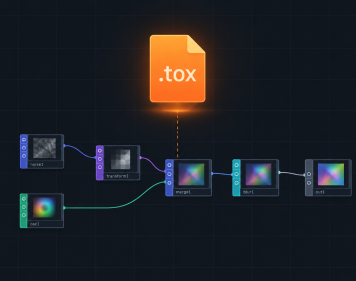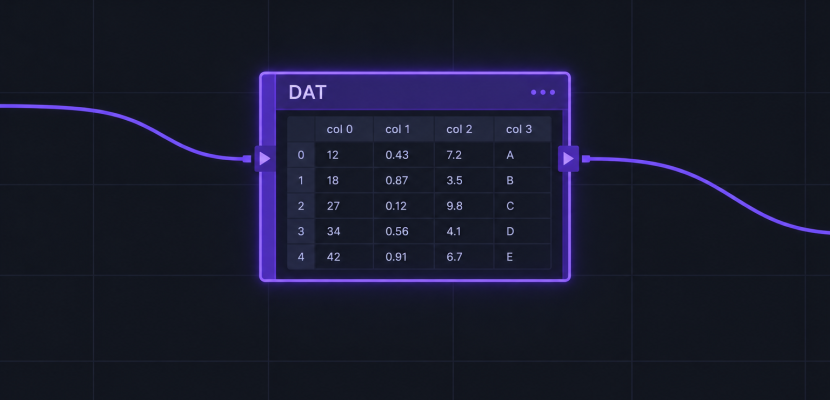
In TouchDesigner, a DAT is a Data Operator: the node family that holds text, tables and Python scripts instead of images, audio channels or 3D geometry. If you’ve seen “DAT” in a patch, a tutorial or a forum thread, that’s what it stands for. This article covers what DATs store, which ones you’ll use first, how to read them with Python, and how to see their contents in the DAT viewer.
What DAT stands for (and the other DATs in your search results)
DAT stands for Data Operator. Derivative, the Toronto company behind TouchDesigner, names every operator family with a three-letter acronym ending in “OP”. When people write “DATs”, they mean more than one Data Operator. The DATs definition is the same everywhere in the TouchDesigner docs and community.
Search “what is dat” and you’ll also find three unrelated meanings:
- DAT Freight & Analytics. This is a load board and rate-data service for the trucking industry. Carriers use it to find loads, and brokers use it to post them.
- Dental Admission Test. This is the entrance exam for dental schools in the US and Canada.
- Direct Antiglobulin Test. This is a blood test used in medicine.
None of these has anything to do with creative coding. If you landed here from TouchDesigner, you’re in the right place. “D at” and “dat’s meaning” queries usually come from the same confusion, so it helps to know which DAT a tutorial means before you go looking for help.
Where DATs sit among TouchDesigner’s operator families
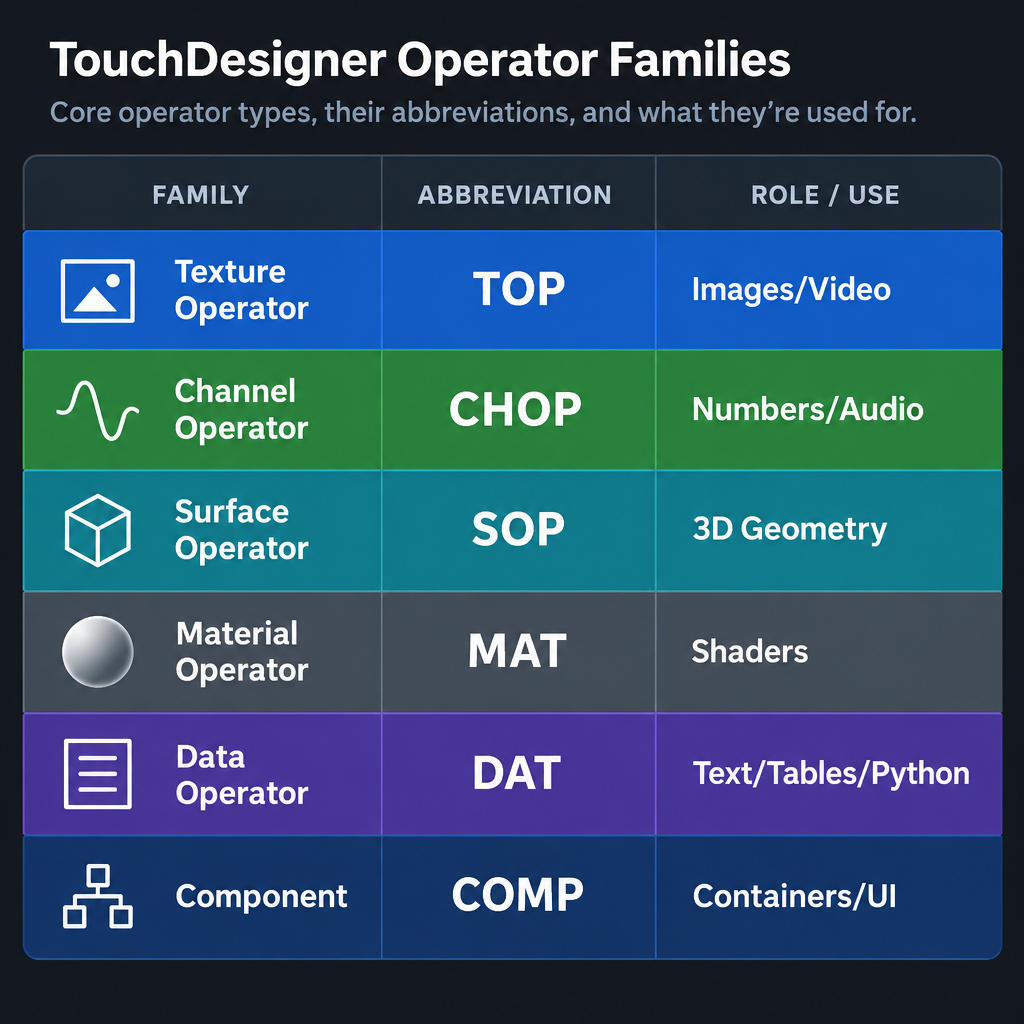
TouchDesigner networks are built from operators wired together. Each family handles one kind of data and has its own colour in the network editor.
| Family | Stands for | What it carries |
|---|---|---|
| TOP | Texture Operator | Images and video on the GPU |
| CHOP | Channel Operator | Numbers over time: audio, motion, sensor values |
| SOP | Surface Operator | 3D geometry |
| MAT | Material Operator | Shaders and surface materials |
| DAT | Data Operator | Text, tables and Python |
| COMP | Component | Containers, 3D objects, UI panels |
Recent builds also add POPs (Point Operators), a GPU-based geometry family. DATs are the glue between all of them. A CHOP tells you a value is 0.73. A DAT tells you that cue 4 is called “blue wash”, lasts 12 seconds and fires at 9:40 pm.
Here’s the simplest way to think about it. If a human could read it in a spreadsheet or a text file, it probably belongs in a DAT.
Text DATs and Table DATs: the two shapes of data
Every DAT holds its contents in one of two forms.
Text is free-form, like a document. A Text DAT can hold notes, a GLSL shader, a JSON blob or a Python script.
Table data sits in rows and columns of cells. A Table DAT looks like a small spreadsheet. Cue lists, playlists, color palettes and mapping coordinates all live comfortably here.
One detail trips up almost everyone: every cell is a string. Type 12.5 into a table and TouchDesigner stores the text “12.5”. When you pull that into a parameter or a calculation, you convert it yourself with float() or int(). Forget that and your math will fail in confusing ways.
The DATs you’ll use most
There are well over a hundred DAT types. You’ll touch maybe fifteen of them regularly. Group them by job and they get much easier to learn.
| Job | DATs to know |
|---|---|
| Hold data you type in | Text DAT, Table DAT |
| Run Python on events | Execute DAT, CHOP Execute DAT, DAT Execute DAT, Parameter Execute DAT, Panel Execute DAT |
| Generate a table with code | Script DAT |
| Reshape tables | Select DAT, Sort DAT, Merge DAT, Transpose DAT, Substitute DAT, Evaluate DAT |
| Talk to the outside world | OSC In DAT, UDP In DAT, TCP/IP DAT, Serial DAT, Web Client DAT, Web Server DAT, WebSocket DAT, MIDI Event DAT |
| Read files and formats | File In DAT, Folder DAT, JSON DAT, XML DAT |
| Inspect your project | Info DAT, Error DAT, Examine DAT, OP Find DAT |
| Bridge to channels | CHOP to DAT (the reverse is the DAT to CHOP, which lives in the CHOP family) |
The Execute family is where most people first meet Python in TouchDesigner. Each one watches for something, such as a frame starting, a channel changing or a table being edited, and calls a function you fill in.
Reading and writing DATs with Python
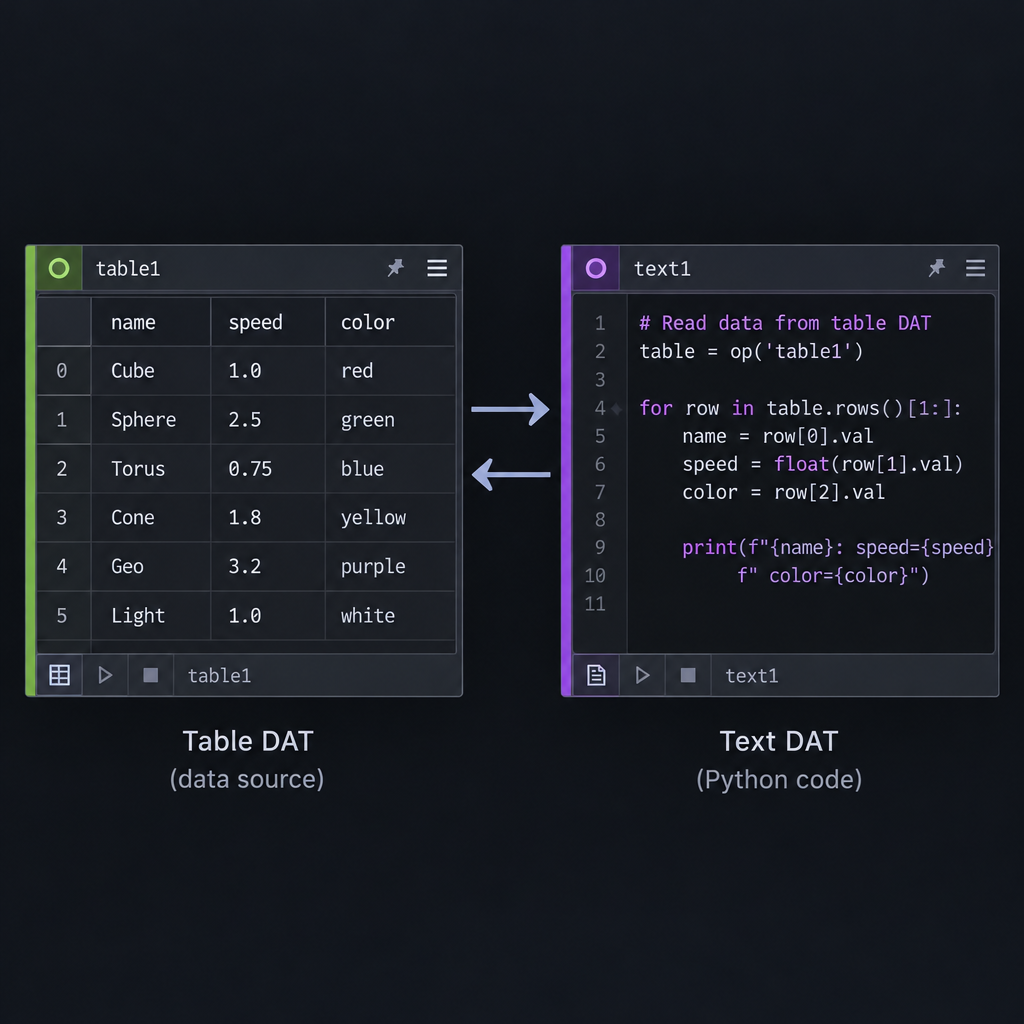
You reach any operator with op('name'). For a table, square brackets give you a cell by row and column, using either indices or header names.
# A Table DAT called 'settings' with a header row: name | speed | color
t = op('settings')

# Row 1, column named 'speed'. Cells are strings, so convert them.
speed = float(t[1, 'speed'])

# Loop over every row except the header
for row in t.rows()[1:]:
    print(row[0].val, row[1].val)

# Add a row and check the size
t.appendRow(['cue4', 12.5, 'blue'])
print(t.numRows, t.numCols)
Print output appears in the Textport, which you open with Alt+T.
Text DATs work through .text, and they can also act as Python modules. Put helper functions in a Text DAT called utils and call them from anywhere:
# Inside a Text DAT named 'utils'
def remap(v, in_lo, in_hi, out_lo, out_hi):
    return out_lo + (v - in_lo) * (out_hi - out_lo) / (in_hi - in_lo)

# From any other script
op('utils').module.remap(0.5, 0, 1, 100, 400)
Callback DATs come with function stubs already written. Here’s a CHOP Execute DAT that logs loud peaks from an audio analysis CHOP into a table called log:
def onValueChange(channel, sampleIndex, val, prev):
    # Only record peaks above 0.8
    if val > 0.8:
        op('log').appendRow([absTime.frame, round(val, 3)])
    return
Point the DAT’s CHOPs parameter at your analysis CHOP, switch on Value Change, and the log fills itself while the music plays.
Studio tip
End every DAT chain with a Null DAT and reference the Null from scripts and parameters. You can then rebuild everything upstream without breaking a single reference.
How to see what’s inside: the DAT viewer
Every operator in TouchDesigner has a viewer, the preview drawn inside its node tile. For DATs, the viewer shows the actual text or table, so you can read cells right in the network.
There are three handy ways to look at a DAT:
- In the node. Enlarge the tile and the DAT viewer shows more rows. Turn on the viewer toggle at the bottom right of the node to scroll and interact with it.
- In a floating window. Right-click the DAT and choose View. This opens a separate viewer you can park on a second monitor while you work.
- In the editor. Right-click and choose Edit Contents to type into a Text or Table DAT directly.
Middle-clicking any node pops up an info panel with its type, size and cook time. That last number matters for performance. A Script DAT rebuilding a large table every frame will show up there long before you notice dropped frames.
Heads up
DATs cook on the CPU. Rewriting thousands of cells every frame or running heavy Python in onFrameStart will drag your frame rate down, so update tables only when data actually changes.
A first DAT exercise
This takes about five minutes and shows the core idea: a table driving visuals.
Quick steps: drive a shape from a Table DAT
- Create a Table DAT and rename it settings.
- Give it a header row: name, value.
- Add a row: radius, 0.3.
- Create a Circle TOP.
- In its Radius parameter, switch to expression mode.
- Type the expression float(op(‘settings’)[1, ‘value’]).
- Edit the cell in the table and watch the circle change.
Now replace the hand-typed table with an OSC In DAT or a File In DAT reading a CSV. The circle still works, because the downstream network never cared where the data came from. That separation is the whole point of DATs.
Where DATs shine in real projects
Show control. A cue list in a Table DAT, one row per cue, is easier to edit during tech rehearsal than a tangle of keyframes. Many projection mapping shows run exactly this way, with the operator stepping through rows using a single button.
Talking to other software and hardware. DATs handle the messy protocols: OSC from a lighting desk, serial data from an Arduino, JSON from a web API, WebSocket messages from a phone controller.
Reusable tools. When you package a component as a .tox file, the Python extensions and config tables travel inside it as DATs. Our guide to the tox definition covers how that packaging works.
Shaders. GLSL code for GLSL TOPs and MATs lives in Text DATs, so you can edit it inside TouchDesigner or sync it to an external file.
Generative text and data art. Feed a Table DAT of words or numbers into instancing and you have a data visualization pipeline. If you’ve built something similar in a browser, our article on p5 js shows the same idea in JavaScript.
Common mistakes with DATs
- Forgetting cells are strings. Wrap values in
float()orint()before doing math. - Off-by-one rows. Row 0 is your header if you have one. Data starts at row 1.
- Renaming a table and breaking every reference. Use a Null DAT as a stable endpoint, or reference by path once and store it.
- Silent errors. Python errors in callback DATs show a red flag on the node. Drop an Error DAT into your project to collect them in one table.
- Heavy work every frame. Event-driven callbacks such as onValueChange or onTableChange beat polling in onFrameStart almost every time.
FAQ
What does DAT stand for in TouchDesigner?
DAT stands for Data Operator. It’s the operator family that stores and processes text, tables and Python scripts.
What does DATs mean?
It’s simply the plural. “Use two DATs” means use two Data Operators, for example a Table DAT and a Select DAT.
Is a DAT the same as a Python script?
No. A DAT can hold a Python script, but it can also hold a table, a shader, a JSON file or plain notes. Python is one of the things DATs carry.
What is the DAT viewer?
It’s the preview inside a DAT’s node tile, or the floating window you get from right-click > View. It shows the DAT’s text or table so you can read and check values as your project runs.
Do I need to pay for TouchDesigner to use DATs?
No. The free Non-Commercial licence includes DATs and Python. Its main limit is output resolution, capped at 1280 by 1280. Paid licences remove that cap and allow commercial work.
What’s the difference between a DAT and a CHOP?
A CHOP carries numeric channels that change over time, ideal for audio and animation. A DAT carries text and tables, ideal for cue lists, messages and scripts. Projects usually convert between them with CHOP to DAT and DAT to CHOP.
Try it live
TouchDesigner won’t run in a web page, so this p5.js sketch imitates the core DAT idea instead. A table of strings drives the shapes, every cell gets converted to a number before use, and the table is drawn on screen like a DAT viewer. Click to append a row, and press C to clear back to the header.
// A tiny imitation of a Table DAT driving visuals.
// Every cell is a string, just like in TouchDesigner.
let table = [
  ['name', 'x', 'y', 'size', 'hue'],
  ['a', '0.3', '0.45', '80', '200'],
  ['b', '0.6', '0.35', '50', '320'],
  ['c', '0.5', '0.7', '110', '40']
];

function setup() {
  createCanvas(800, 500);
  colorMode(HSB, 360, 100, 100, 1);
  textFont('monospace');
}

function draw() {
  background(230, 30, 12);
  drawShapes();
  drawViewer();
}

// Read each data row, convert strings to numbers, then draw
function drawShapes() {
  noStroke();
  for (let r = 1; r < table.length; r++) {
    let row = table[r];
    let x = float(row[col('x')]) * 520;
    let y = float(row[col('y')]) * height;
    let s = float(row[col('size')]);
    let h = float(row[col('hue')]);
    // A gentle pulse so the table feels alive
    let pulse = 1 + 0.08 * sin(frameCount * 0.05 + r);
    fill(h, 70, 95, 0.85);
    circle(x, y, s * pulse);
  }
}

// Look up a column index by its header name, like t[row, 'size']
function col(name) {
  return table[0].indexOf(name);
}

// Draw the table as text, like a DAT viewer in the network
function drawViewer() {
  let x0 = 540;
  let y0 = 30;
  let cw = 48;
  let rh = 22;
  fill(0, 0, 100, 0.08);
  rect(x0 - 10, y0 - 20, 260, min(table.length, 20) * rh + 30, 6);
  textSize(12);
  for (let r = 0; r < min(table.length, 20); r++) {
    for (let c = 0; c < table[r].length; c++) {
      // Header row in pink, the colour DATs use in the network
      if (r === 0) fill(320, 50, 100);
      else fill(0, 0, 90);
      text(table[r][c], x0 + c * cw, y0 + r * rh);
    }
  }
  fill(0, 0, 70);
  text('click: appendRow   C: clear', x0, height - 20);
}

// Clicking appends a new row of strings, like t.appendRow([...])
function mousePressed() {
  if (mouseX > 520) return;
  let newRow = [
    'r' + table.length,
    nf(mouseX / 520, 1, 2),
    nf(mouseY / height, 1, 2),
    str(floor(random(30, 120))),
    str(floor(random(360)))
  ];
  table.push(newRow);
}

// Press C to clear everything except the header row
function keyPressed() {
  if (key === 'c' || key === 'C') {
    table = [table[0]];
  }
}