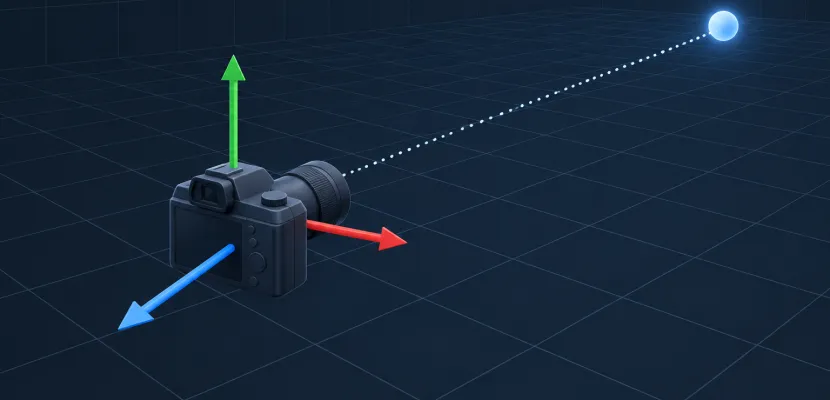
Every lookAt function, from three.js to Roblox, takes the same three inputs: where the camera is, the point it should face, and a rough idea of which way is up. From those it builds a rotation (or a view matrix) with two cross products and a little normalising. This guide covers that math, the convention each engine uses, the bugs that send cameras spinning, and how the view frustum decides what ends up on screen.
Key takeaways
- lookAt turns an eye position, a target and an up hint into three perpendicular axes: right, up and forward.
- The view matrix is the inverse of the camera’s own transform, and for a lookAt camera that inverse is just a transpose plus a dot-product translation.
- Engines don’t agree on which local axis faces the target: -Z in three.js cameras, Godot and Roblox, +Z in Unity and three.js meshes.
- Almost every lookAt flip comes from an up vector that is parallel to the look direction.
- lookAt only sets orientation. The projection (field of view, aspect, near, far) defines the frustum that decides what you see.
Fact-checked
We checked these key facts against the sources named, on November 09, 2026:
- Normalised, forward is (0, 0.371, 0.928). ### Step 2: right = normalize(cross(up, forward)) The cross product of two vectors is perpendicular to both (source: mathworld.wolfram.com)
- Godot’s look_at aims the node’s -Z axis at the target, but most imported models face +Z (source: docs.godotengine.org)
- Picture a tripod: the camera’s position is fixed, and lookAt only swings and tilts the head (source: threejs.org)
- Unity’s Transform.LookAt documentation states it plainly: worldUp is a hint, and the transform’s up vector matches it exactly only when the forward direction is perpendicular to worldUp (source: docs.unity3d.com)
- If your sketch looks oddly cropped, check this number before you touch lookAt. ### Near and far: the depth trade-off Depth-buffer precision is concentrated near the near plane, so a tiny near value wastes most of it (source: developer.nvidia.com)
What lookAt does, in one picture
lookAt answers one question: “I’m standing here and want to face that point, so how should I be rotated?” It returns an orientation. Depending on the API that comes back as a rotation matrix, a quaternion, a CFrame or a view matrix, and it never moves the object. Picture a tripod: the camera’s position is fixed, and lookAt only swings and tilts the head.
The sketch at the end of this page shows this live. Move the mouse to aim a virtual camera and watch its red, green and blue axes plus its frustum follow the target. When you push the target over the top, you’ll also see the most common lookAt bug happen in front of you.
The three inputs: eye, target, up
You need three vectors, and only two of them are exact.
| Input | Also called | What it means | Must be exact? |
|---|---|---|---|
| Eye | position, at, cameraPosition |
Where the camera or object sits in world space | Yes |
| Target | center, lookAt, focus point |
The world-space point to face | Yes |
| Up | worldUp, up hint | Roughly which way the top of the frame should point | No, only a hint |
The up vector is the one people misread. Unity’s Transform.LookAt documentation states it plainly: worldUp is a hint, and the transform’s up vector matches it exactly only when the forward direction is perpendicular to worldUp. Tilt the camera down 30 degrees and its real up vector leans back by 30 degrees too. That is the correct behaviour.
Camera lookAt vs object lookAt
The math is identical for cameras and objects. What differs is how the result is used. An object’s orientation goes straight into its model matrix, which takes it from local space to world space. A camera’s orientation gets inverted into a view matrix, which carries the whole world into camera space so the camera sits at the origin looking down an axis.
That’s why the same function can face different axes depending on what you call it on. In three.js, Object3D.lookAt points a camera’s or light’s -Z axis at the target and a regular mesh’s +Z axis at it. Cameras in OpenGL tradition look down -Z. Imported models usually have their “front” on +Z.
One quick disambiguation: Look@ is also the name of an augmented-reality photobooth brand. That product has nothing to do with this function. If you came here for the installation, you want their site, not a transform matrix.
The lookAt formula in 5 steps
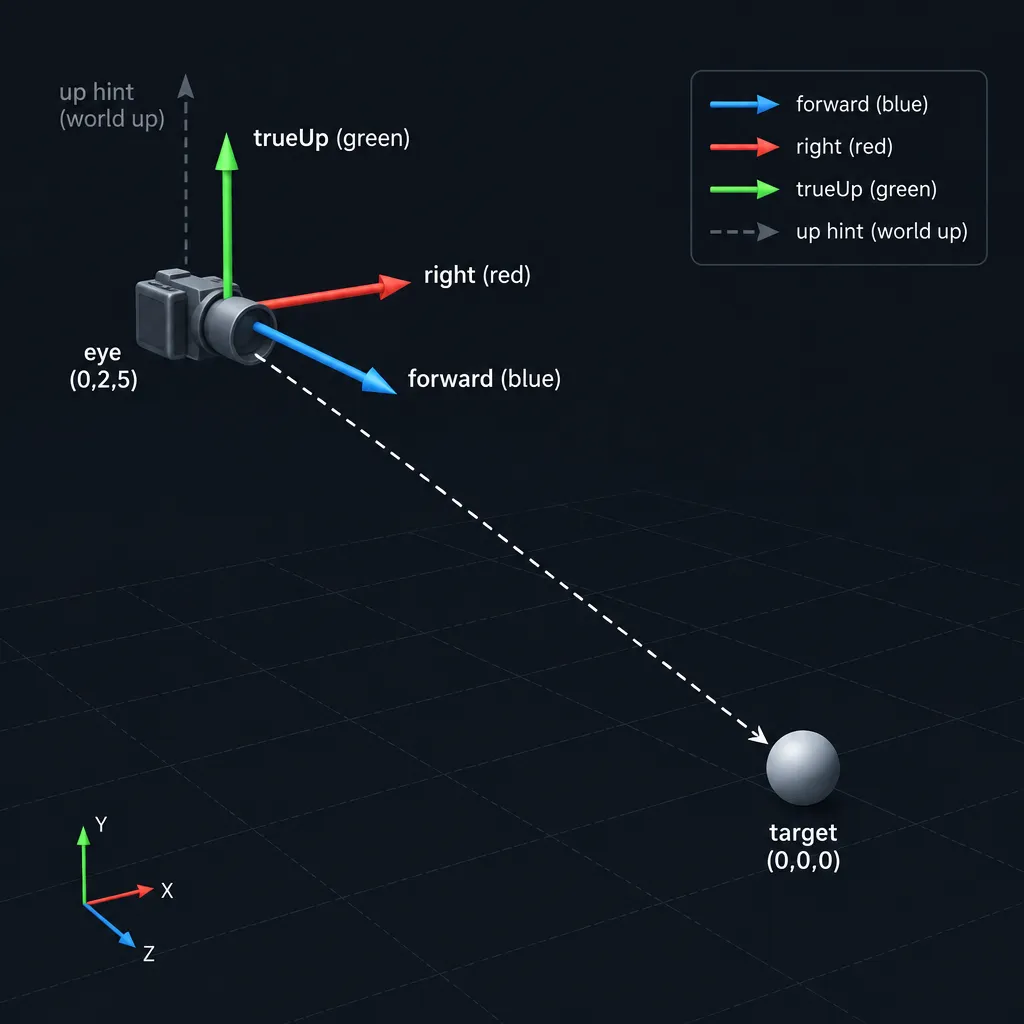
To build a lookAt matrix, take forward = normalize(eye − target), right = normalize(cross(up, forward)), and trueUp = cross(forward, right). Place those three axes and the eye position into a 4×4 matrix and you have the camera’s camera-to-world transform. Invert it and you have the view matrix.
This follows the derivation in Swarthmore College’s CS40 notes (Fall 2025), which call the vectors n̂, r̂ and û. Those notes leave the final view matrix as an exercise. The full version is written out below.
Quick steps: build a lookAt matrix
- Subtract target from eye and normalise to get forward.
- Cross up with forward and normalise to get right.
- Cross forward with right to get the true up.
- Put right, up, forward and eye into the columns of a 4×4 matrix.
- Transpose the rotation and dot the eye to get the view matrix.
Step 1: forward = normalize(eye − target)
This vector points from the target back toward the eye. That feels backwards until you remember the right-handed OpenGL convention: the camera looks down its own -Z axis, so its +Z axis has to point away from what it sees. If eye is (0, 2, 5) and target is the origin, eye − target is (0, 2, 5), with length √29 ≈ 5.385. Normalised, forward is (0, 0.371, 0.928).
Step 2: right = normalize(cross(up, forward))
The cross product of two vectors is perpendicular to both. Crossing the up hint with forward gives a vector that points to the camera’s right and lies flat relative to the up hint. You must normalise it, because up and forward are usually not perpendicular, so the result is shorter than 1. This is also the step that fails: when up and forward are parallel, the cross product is (0, 0, 0) and the normalisation divides by zero.
Step 3: true up = cross(forward, right)
Now you rebuild up so it is exactly perpendicular to the other two. This vector needs no normalisation. As the Swarthmore notes point out, the cross product of two perpendicular unit vectors already has length 1, which saves a square root per call.
Step 4: assemble the camera-to-world matrix
Put the three axes in the first three columns and the eye position in the fourth. This matrix takes points from camera space into world space, and it’s what a ray tracer or a mesh’s model matrix uses.
Here is a worked example for eye (0, 2, 5), target (0, 0, 0), up (0, 1, 0):
| Vector | Formula | Value |
|---|---|---|
| eye − target | eye − target | (0, 2, 5) |
| forward (f) | normalize(eye − target) | (0, 0.371, 0.928) |
| up × f | cross(up, f) | (0.928, 0, 0) |
| right (r) | normalize(cross(up, f)) | (1, 0, 0) |
| true up (u) | cross(f, r) | (0, 0.928, −0.371) |
| −dot(r, eye) | translation x | 0 |
| −dot(u, eye) | translation y | 0 (1.857 − 1.857) |
| −dot(f, eye) | translation z | −5.385 |
Camera-to-world, with columns r, u, f, eye:
| 1   0       0      0 |
| 0   0.928   0.371  2 |
| 0  -0.371   0.928  5 |
| 0   0       0      1 |
Step 5: invert it cheaply to get the view matrix
The camera-to-world matrix is a rotation R followed by a translation T, so M = T·R. Its inverse is R⁻¹·T⁻¹. A pure rotation’s inverse is its transpose, and inverting a translation just negates it. The view matrix is therefore Rᵀ·T⁻¹: the axes move into the rows, and the translation becomes the negated dot product of each axis with the eye.
| 1   0       0       0     |
| 0   0.928  -0.371   0     |
| 0   0.371   0.928  -5.385 |
| 0   0       0       1     |
You can check it two ways. Multiply the eye (0, 2, 5, 1) through and you get (0, 0, 0): the camera now sits at the origin. Multiply the target (0, 0, 0, 1) through and you get (0, 0, −5.385), which is straight ahead on -Z at exactly the eye-to-target distance. With eye (0, 0, 5) the whole thing collapses to the identity rotation plus a translation of −5 on Z. That makes a good sanity test for any lookAt you write.
Where lookAt ends and the camera frustum begins
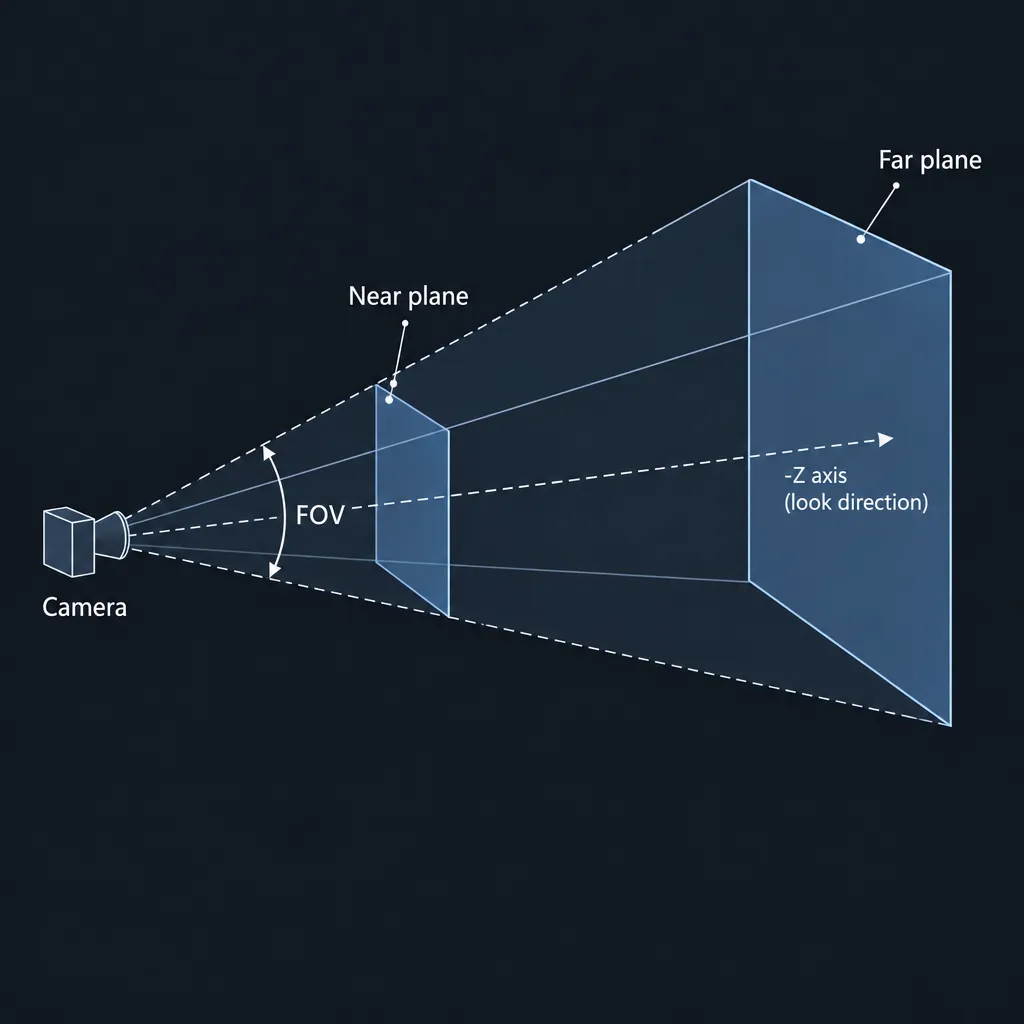
lookAt decides where the camera points. The projection decides how much of the world it sees. The region it sees is called the view frustum: for a perspective camera, a pyramid with its tip cut off at the near plane. Anything outside it is clipped, and engines skip drawing objects whose bounds fall completely outside it.
The full chain for every vertex is clip position = Projection × View × Model × vertex. lookAt produces the View term (or the Model term for an object). The camera frustum comes from the Projection term.
The six planes and the four numbers
A perspective frustum is bounded by six planes: near, far, left, right, top and bottom. You rarely set them directly. You give four numbers and the library computes the planes:
| Parameter | three.js PerspectiveCamera | p5.js | What it controls |
|---|---|---|---|
| Vertical field of view | fov in degrees (default 50) |
perspective(fovy, ...) in radians |
How wide the pyramid opens top to bottom |
| Aspect ratio | aspect (default 1) |
aspect |
Width divided by height |
| Near plane | near (default 0.1) |
near |
Closest visible distance |
| Far plane | far (default 2000) |
far |
Farthest visible distance |
p5.js also exposes frustum(left, right, bottom, top, near, far) if you want the planes themselves, which is handy for off-axis projection. An orthographic camera’s frustum is a plain box, so distance doesn’t shrink anything.
Horizontal field of view comes from the vertical one: hfov = 2·atan(tan(vfov / 2) · aspect). A 50° vertical view on a 16:9 canvas spans about 79.3° horizontally.
Fitting a subject in frame
To frame an object of height h with vertical field of view fov, put the camera at distance d = (h / 2) / tan(fov / 2) from it, then call lookAt on its centre. For a 2-unit-tall subject and three.js’s default 50°, d = 1 / tan(25°) ≈ 2.14. Multiply by about 1.2 to leave breathing room.
In the reverse direction, the camera in the worked example sits 5.385 units from its target. With a 50° field of view it sees 2 × 5.385 × tan(25°) ≈ 5.02 units of height at the target. If your sketch looks oddly cropped, check this number before you touch lookAt.
Near and far: the depth trade-off
Depth-buffer precision is concentrated near the near plane, so a tiny near value wastes most of it. Moving near from 0.01 to 0.1 does far more against z-fighting than cutting far in half. Pick the largest near value your scene tolerates. Shimmering edges from depth fighting are a different problem from the stair-stepping that antialiasing techniques fix, though the two often get confused.
The lookAt matrix in OpenGL, GLM and WebGL
OpenGL-family libraries all build the same view matrix. They differ in how it’s stored, which handedness they assume, and whether the function still exists. The math from the previous section is identical everywhere. Only the layout and the sign of forward change.
Row-major vs column-major: same matrix, transposed
If your matrix “works but is mirrored or swims”, it is probably transposed. Storage order and multiplication convention are separate questions, and mixing them up is the classic bug.
| Layout | Where right/up/forward go (view matrix) | Where translation goes | Used by |
|---|---|---|---|
| Column vectors, column-major storage | Axes in rows 0–2 of the 3×3 block | Last column, array indices 12–14 | OpenGL, WebGL, GLM, three.js Matrix4.elements, p5.js |
| Row vectors, row-major storage | Axes in columns 0–2 of the 3×3 block | Bottom row, array indices 12–14 | DirectXMath, Scratchapixel’s lessons |
Both layouts put the translation at indices 12, 13 and 14 in memory. They describe the same numbers. One is written as the transpose of the other, and the multiplication order is reversed to match. Also note that three.js’s Matrix4.set() takes its arguments in row-major reading order but stores them column-major.
Right-handed vs left-handed
In a right-handed system the camera looks down -Z. In a left-handed one it looks down +Z, so forward becomes normalize(target − eye) and the cross products swap order. GLM provides glm::lookAtRH and glm::lookAtLH explicitly. Plain glm::lookAt uses the library’s default handedness, which is right-handed unless you configure GLM for left-handed clip control. DirectXMath’s equivalent is XMMatrixLookAtLH.
\#include <glm/glm.hpp>
\#include <glm/gtc/matrix_transform.hpp>

// Same inputs as the worked example: the result matches the view matrix above
glm::mat4 view = glm::lookAt(
    glm::vec3(0.0f, 2.0f, 5.0f),   // eye
    glm::vec3(0.0f, 0.0f, 0.0f),   // target
    glm::vec3(0.0f, 1.0f, 0.0f));  // up hint
Replacing gluLookAt
gluLookAt belongs to GLU, which relies on the fixed-function matrix stack. That stack is gone from OpenGL ES 2.0 and from the core profile. The OpenGL wiki’s advice is to compute the same matrix yourself and upload it as a uniform. In raw WebGL that takes about twenty lines:
// Build a right-handed view matrix (column-major) for gl.uniformMatrix4fv
function lookAt(eye, target, up) {
  // forward points from the target back to the eye
  let fx = eye[0] - target[0], fy = eye[1] - target[1], fz = eye[2] - target[2];
  let len = Math.hypot(fx, fy, fz);
  fx /= len; fy /= len; fz /= len;
  // right = up x forward, normalised
  let rx = up[1] * fz - up[2] * fy;
  let ry = up[2] * fx - up[0] * fz;
  let rz = up[0] * fy - up[1] * fx;
  len = Math.hypot(rx, ry, rz);
  rx /= len; ry /= len; rz /= len;
  // true up = forward x right, already unit length
  const ux = fy * rz - fz * ry, uy = fz * rx - fx * rz, uz = fx * ry - fy * rx;
  return new Float32Array([
    rx, ux, fx, 0,
    ry, uy, fy, 0,
    rz, uz, fz, 0,
    -(rx * eye[0] + ry * eye[1] + rz * eye[2]),
    -(ux * eye[0] + uy * eye[1] + uz * eye[2]),
    -(fx * eye[0] + fy * eye[1] + fz * eye[2]),
    1
  ]);
}
// gl.uniformMatrix4fv(viewLoc, false, lookAt([0, 2, 5], [0, 0, 0], [0, 1, 0]));
Fragment-shader raymarchers need the opposite matrix. You aren’t moving the world into camera space. You’re shooting rays from the camera out into the world, so you want the camera-to-world rotation and no inverse at all:
// Camera-to-world rotation for raymarching: columns are right, up, forward
mat3 lookAt(vec3 eye, vec3 target, vec3 up) {
    vec3 f = normalize(target - eye);   // toward the target this time
    vec3 r = normalize(cross(f, up));
    vec3 u = cross(r, f);
    return mat3(r, u, f);
}

// In main(): uv is centred screen space, 1.5 acts like a focal length
// vec3 rd = lookAt(ro, ta, vec3(0.0, 1.0, 0.0)) * normalize(vec3(uv, 1.5));
Scratchapixel’s lesson builds this camera-to-world version for ray tracers. LearnOpenGL’s camera chapter builds the view version for rasterisers. Neither is wrong. They solve opposite problems.
lookAt in every engine: a convention cheat sheet
Every engine implements the same construction, but they disagree on which local axis faces the target, which way is up, and whether the result is a view matrix or an object rotation. The table below collects the conventions from each engine’s current documentation as of November 2026.
| Engine / library | Function signature | Axis that faces the target | Default up | Handedness | Notes / gotchas |
|---|---|---|---|---|---|
| three.js | object.lookAt(vector) or lookAt(x, y, z) |
-Z for cameras and lights, +Z for other objects | object.up, (0, 1, 0) |
Right-handed, Y-up | OrbitControls overrides it; no non-uniformly scaled parents |
| Unity | Transform.LookAt(Transform target, Vector3 worldUp = Vector3.up) |
+Z (forward) | World Y | Left-handed, Y-up | worldUp is only a hint |
| Godot 4 | look_at(target, up = Vector3(0, 1, 0), use_model_front = false) |
-Z, or +Z with use_model_front |
(0, 1, 0) | Right-handed, Y-up | Node must be in the scene tree |
| Roblox | CFrame.lookAt(at, lookAt, up?) |
-Z (LookVector) | (0, 1, 0) | Right-handed, Y-up | Replaces CFrame.new(pos, lookAt) |
| GLM | glm::lookAt(eye, center, up), lookAtRH, lookAtLH |
-Z (RH) or +Z (LH) | You pass it | Right-handed by default | Returns a view matrix |
| gluLookAt | gluLookAt(eyeX, eyeY, eyeZ, centerX, centerY, centerZ, upX, upY, upZ) |
-Z | You pass it | Right-handed | Deprecated; multiplies the current matrix |
| p5.js | cam.lookAt(x, y, z), camera(...) |
-Z (gluLookAt style) | (0, 1, 0) | Right-handed math, +Y draws downward | Changes orientation only |
| Unreal Engine | Find Look at Rotation (Start, Target) | +X | Z-up | Left-handed, Z-up | Returns a Rotator; yaw snap at pitch ±90 |
Did you know?
Godot and Unity disagree on which way is forward. According to the Godot 4 class reference, look_at points a node’s -Z axis at the target by default, while Unity’s Transform.LookAt points +Z. Godot added the use_model_front flag so imported models that face +Z don’t end up looking backwards.
three.js: Object3D.lookAt and camera.lookAt
Every three.js object inherits lookAt from Object3D. The target is in world space, and since R96 the method has handled transformed (rotated or translated) parents correctly. That’s worth knowing because many older tutorials predate it. The three.js docs still say it doesn’t support parents with non-uniform scale. The library moves fast: r186 shipped in September 2026. Check API names against the version you install.
import * as THREE from 'three';

const camera = new THREE.PerspectiveCamera(50, innerWidth / innerHeight, 0.1, 100);
camera.position.set(0, 2, 5);   // the camera position from the worked example
camera.lookAt(0, 0, 0);         // camera's -Z now points at the origin mesh.lookAt(camera.position);   // a mesh's +Z now faces the camera
Aiming lights: target vs lookAt
SpotLight and DirectionalLight in three.js don’t aim with lookAt. They shine from their position toward light.target.position, and that target defaults to the origin. Calling light.lookAt() rotates the light object but leaves the beam where it was. Set the target’s position instead. Per the docs, if you move the target you also need to add it to the scene so its world matrix updates:
spot.target.position.set(2, 0, -1);
scene.add(spot.target);
Unity: Transform.LookAt and Quaternion.LookRotation
Transform.LookAt has two overloads, one taking a Transform and one taking a world position. Both take an optional worldUp that defaults to Vector3.up. The Unity 6 manual’s example transform.LookAt(target, Vector3.left) rolls the camera onto its side just by changing the hint. When you want the rotation without applying it (to blend, clamp or store it), use Quaternion.LookRotation(forward, upwards).
using UnityEngine;

public class LookAtTarget : MonoBehaviour
{
    public Transform target;

    void LateUpdate()
    {
        // LateUpdate runs after movement, so the aim never lags a frame
        transform.LookAt(target);                       // +Z faces the target
        // Quaternion q = Quaternion.LookRotation(target.position - transform.position, Vector3.up);
    }
}
Godot: look_at, look_at_from_position and use_model_front
In Godot 4 the signature is look_at(target, up = Vector3(0, 1, 0), use_model_front = false). By default -Z faces the target. With use_model_front = true, +Z (the asset’s front) faces it, and +X ends up on the node’s left. Godot’s 4.0-to-4.1 migration guide lists this parameter as new in 4.1. That explains the “too many arguments for look_at” error people hit on Godot 4.0.3.
extends Node3D

@export var target: Node3D func _process(_delta):
    look_at(target.global_position, Vector3.UP)          # -Z faces the target
    # look_at(target.global_position, Vector3.UP, true)  # +Z (model front) faces it, Godot 4.1+
look_at fails if the node isn’t inside the scene tree yet. The class reference points to look_at_from_position(position, target, up, use_model_front) instead, which sets the position and orientation in one call.
Studio tip
In Godot 4.1 and later, pass use_model_front = true for glTF models that face +Z. If you are placing a node before it enters the tree, use look_at_from_position instead of look_at.
Roblox: CFrame.lookAt with Vector3 inputs
Roblox’s API is CFrame.lookAt(at: Vector3, lookAt: Vector3, up?: Vector3). It returns a CFrame positioned at at with its LookVector (-Z) pointing at lookAt. The Roblox Creator Docs say the older CFrame.new(pos, lookAt) overload has been replaced by CFrame.lookAt(). For full control over all three axes, they point to CFrame.fromMatrix(pos, vX, vY, vZ).
local turret = workspace.Turret
local target = workspace.Target turret.CFrame = CFrame.lookAt(turret.Position, target.Position)
-- custom up: CFrame.lookAt(turret.Position, target.Position, Vector3.xAxis)
Did you know?
Roblox’s documentation once labelled CFrame.new(pos, lookAt) “deprecated”. In a Roblox DevForum thread, a staff member said that wording had been removed. The current Creator Docs say the overload has been “replaced” by CFrame.lookAt, so old scripts keep working, but new code should use lookAt.
p5.js: camera.lookAt and setPosition
In p5.js, cam.lookAt(x, y, z) points a camera at a world-space location and changes only its orientation. cam.setPosition(x, y, z) moves it without changing where it faces. The global camera() function takes eye, centre and up in one call, so it’s p5’s version of gluLookAt. If p5.js is new to you, keep in mind that its WEBGL mode draws +Y downward.
let cam;

function setup() {
  createCanvas(600, 400, WEBGL);
  cam = createCamera();
  setCamera(cam);                 // make it the active camera explicitly
  cam.setPosition(0, -400, 800);  // above and in front
  cam.lookAt(0, 0, 0);            // then aim at the origin
}
Heads up
An issue filed during p5.js 2.0 development (#7602) found that camera examples didn’t behave as documented until setCamera() was called after createCamera(). Calling it explicitly costs nothing in 1.x and avoids the problem in 2.x.
Why your lookAt breaks, and how to fix it
Nearly every lookAt bug falls into one of three causes. The up hint is parallel to the view direction, the engine faces a different axis than your model, or something else overwrites your rotation every frame. The table maps the symptoms people report to fixes.
| Symptom | Cause | Fix | Engines affected |
|---|---|---|---|
| Camera spins or flips 180° when the target is directly above or below | up × forward is zero or changes sign | Swap the up hint near the pole or carry the previous up | All |
| Sudden 180° yaw at pitch ±90 | Euler/rotator decomposition has no unique yaw at the pole | Stay in quaternions; avoid converting through angles | Unreal Find Look at Rotation, Euler-based code |
| Model faces backwards | Engine faces -Z, model’s front is +Z | use_model_front, a 180° child pivot, or swap the arguments |
Godot, three.js cameras vs meshes, Roblox |
| lookAt has no effect | Controls overwrite the camera each frame | Set controls.target, call controls.update() |
three.js OrbitControls |
| Error or no rotation in Godot | Node not in scene tree | look_at_from_position or call after _ready |
Godot |
| “Too many arguments for look_at” | use_model_front doesn’t exist in 4.0 |
Upgrade to 4.1 or drop the third argument | Godot 4.0 |
| p5 camera ignores lookAt | Camera created but not active | setCamera(cam) |
p5.js 2.0 |
| Roll snaps during loops and corkscrews | Fixed world up | Use last frame’s up as the hint | Coasters, flight cams |
| Skewed or squashed rotation | Non-uniformly scaled parent | Keep scale on a leaf child | three.js and others |
The camera flips when the target is directly above or below
This is the community question “lookAt() flips cam rotation 180 degrees, how do I remove this?” When forward lines up with the up hint, cross(up, forward) shrinks to zero. Just past that point it points the other way, so right and up both flip. The fix is to notice the danger zone and choose a different hint.
// Choose a safe up hint before calling lookAt
const dir = target.clone().sub(eye).normalize();
const up = Math.abs(dir.dot(worldUp)) > 0.999 ? new THREE.Vector3(0, 0, 1) : worldUp;
For a camera that always looks straight down, such as a top-down map or a plotter-style generative piece, set up to +Z or -Z from the start. The Swarthmore demo does the same.
Studio tip
Before calling lookAt, test whether the absolute dot product of the look direction and the up hint is above 0.999. If it is, switch up to (0, 0, 1) or reuse last frame’s up so the camera passes over the pole without flipping.
Find Look at Rotation: unwanted 180° yaw at pitch −90/90
In Unreal Engine, Find Look at Rotation returns a Rotator (pitch, yaw, roll). At exactly ±90° pitch, yaw is undefined. That’s gimbal lock: any yaw describes the same direction, so the function can pick one that jumps by 180°. Interpolating rotators across that pole makes it visible. Build the rotation from vectors (for example with Make Rot from X and Z) or interpolate as quaternions. You can also keep pitch clamped just short of 90°, which most first-person cameras already do.
My model faces backwards
“LookAt() pointing wrong direction” and “VehicleBody look_at is backwards” share a cause. The engine aims -Z, but the modeller exported the car or character with its front on +Z. In Godot 4.1+, pass use_model_front = true. Anywhere else, parent the mesh under an empty pivot, rotate the mesh 180° on Y inside it, and call lookAt on the pivot. In three.js, remember that the same lookAt call aims -Z on a camera and +Z on a mesh.
lookAt does nothing (OrbitControls, the scene tree, p5 setCamera)
OrbitControls computes the camera’s orientation from its own target every time update() runs. Any camera.lookAt() you call gets overwritten on the next frame. Tell the controls where to look instead:
import { OrbitControls } from 'three/addons/controls/OrbitControls.js';

const controls = new OrbitControls(camera, renderer.domElement);
controls.target.set(0, 1, 0);   // the point to orbit and look at
controls.update();
Studio tip
With OrbitControls in three.js, set controls.target and call controls.update() instead of camera.lookAt. To animate the focus point, move controls.target each frame and keep calling update.
The same symptom in Godot usually means the node isn’t in the tree yet. In p5.js it usually means the camera you aimed isn’t the active one.
Roll snaps on loops and corkscrews: carry the previous up forward
A roller-coaster camera should go upside down at the top of a loop, but a fixed world up makes lookAt flip the image instead. People asking “how to get the camera to flip upside down at the right time” need to stop using world up. Pass last frame’s true up as this frame’s hint. Because the previous up is perpendicular to the previous forward, the cross product never collapses, and the camera rolls smoothly through the loop.
The trade-off is drift. After a lot of yawing at steep angles, the carried up can end up tilted when the camera returns to level. A common remedy is to blend the hint back toward world up while the track is level. The live sketch at the end lets you toggle between both behaviours.
Parents with non-uniform scale
lookAt assumes rotations stay rotations. Under a parent scaled (2, 1, 1), the parent’s matrix shears any rotated child, so three.js explicitly doesn’t support this case. Keep non-uniform scale on leaf meshes and keep the nodes you aim uniformly scaled. Also make sure the target is in world coordinates. Passing a local position from another hierarchy points at the wrong place.
Smooth, limited and partial lookAt
Snapping straight to the target looks robotic. For characters, cameras and installations, you usually want to turn gradually, turn only around one axis, or turn only so far. All three start from the rotation lookAt would give you, then change how much of it you apply.
Slerp with a frame-rate-independent factor
Compute the goal rotation as a quaternion, then spherically interpolate (slerp) part of the way toward it every frame. A fixed factor like 0.1 turns twice as fast at 120 fps as at 60 fps. Use t = 1 − exp(−speed × dt) instead. With speed = 6, that is 0.095 at 60 fps and 0.181 at 30 fps, and either way about 5% of the turn remains after half a second.
const m = new THREE.Matrix4();
const goal = new THREE.Quaternion();

// For a mesh whose parent is unrotated: +Z eases toward targetPos
function aimSmooth(obj, targetPos, dt, speed = 6) {
  m.lookAt(targetPos, obj.position, obj.up);   // argument order gives +Z facing
  goal.setFromRotationMatrix(m);
  obj.quaternion.slerp(goal, 1 - Math.exp(-speed * dt));
}
In Unity the equivalent is Quaternion.Slerp(transform.rotation, Quaternion.LookRotation(dir), t). Quaternion.RotateTowards(from, to, maxDegreesDelta) caps the turn speed in degrees per frame instead of easing.
Yaw-only turrets and characters
A character turning toward something on a staircase shouldn’t tip forward. Flatten the target to the looker’s own height before calling lookAt, so only yaw changes:
Vector3 flat = target.position;
flat.y = transform.position.y;                 // ignore height difference
if ((flat - transform.position).sqrMagnitude > 0.0001f)
    transform.LookAt(flat);                    // yaw only
The guard matters. If the target stands exactly above or below, the flattened direction has zero length, and you get the overhead flip from earlier.
Clamping head turns
For head and eye tracking, limit the angle between the body’s forward and the look direction. In Unity, Vector3.RotateTowards(body.forward, dirToTarget, maxRadians, 0f) returns a direction no more than maxRadians away from forward. Feed that to Quaternion.LookRotation and the head stops at the limit instead of spinning like an owl. Something around 70° reads as natural for a stylised character, but treat it as an artistic choice and tune by eye.
Creative coding with lookAt
For artwork, lookAt is mostly a way of giving things attention. Eyes that watch the visitor, cards that always face the viewer and cameras that drift but never lose the subject all use the same call. These three recipes are small enough to drop into an existing sketch.
Eyes that follow you
You don’t need a full matrix for an eyeball, only step 1 of the lookAt formula. Normalise the direction from the eye to the point of interest and push the pupil out along it. In p5.js WEBGL mode:
// Inside draw() in WEBGL mode: a grid of eyes watching a point near the mouse
noStroke();
const look = createVector(mouseX - width / 2, mouseY - height / 2, 300);
for (let x = -240; x <= 240; x += 120) {
  for (let y = -120; y <= 120; y += 120) {
    const f = p5.Vector.sub(look, createVector(x, y, 0)).normalize();
    push();
    translate(x, y, 0);
    fill(240); sphere(40);                  // eyeball
    translate(f.x * 36, f.y * 36, f.z * 36);
    fill(20); sphere(12);                   // pupil rides the forward vector
    pop();
  }
}
In an installation, replace the mouse with a tracked position from a depth camera or a distance sensor wired up through Arduino. The math doesn’t change.
Billboards
Billboards are flat cards that always face the camera, used for particles, labels and painterly sprites. There are two ways to build them, and they look different at wide fields of view:
// Screen-aligned: every card parallel to the screen, cheap and tidy
for (const card of cards) card.quaternion.copy(camera.quaternion);

// Viewpoint-oriented: each card turns to face the camera's position
for (const card of cards) card.lookAt(camera.position);
Screen-aligned cards never show their edges, but near the frame edges they look stretched by perspective. Viewpoint-oriented cards (lookAt) stay round from the camera’s point of view but rotate slightly against each other, which can reveal sorting artefacts in dense clouds. three.js’s Sprite class does the screen-aligned version for you. Since PlaneGeometry faces +Z and mesh lookAt aims +Z, the lookAt version shows the front face with no extra rotation.
Orbiting generative cameras
A camera that moves on its own and calls lookAt every frame turns a static scene into a slow film. Combine the framing distance from the frustum section with a looping path, and the subject stays in frame at any canvas size:
renderer.setAnimationLoop((ms) => {
  const t = ms / 1000;
  const fit = (subjectSize / 2) / Math.tan(THREE.MathUtils.degToRad(camera.fov / 2)) * 1.3;
  camera.position.set(Math.cos(t * 0.2) * fit, 1 + Math.sin(t * 0.13), Math.sin(t * 0.2) * fit);
  camera.lookAt(subject.position);
  renderer.render(scene, camera);
});
Use different frequencies for the height and the orbit (0.13 and 0.2 here) so the path doesn’t repeat for a long time. For a hand-held feel, offset the lookAt target by a few centimetres of Perlin noise. On a portrait canvas, compute the fit from the horizontal field of view instead. The same pose-plus-frustum pairing is what projection mapping tools solve when they match a virtual camera to a physical projector.
FAQ
What is lookAt?
lookAt is a function that rotates a camera or object so one of its axes points at a target. You give it an eye position, a target point and an up hint, and it returns a rotation or view matrix. It never changes position.
What is the lookAt formula?
forward = normalize(eye − target), right = normalize(cross(up, forward)), trueUp = cross(forward, right). The camera-to-world matrix has columns right, trueUp, forward and eye. The view matrix is its inverse: the axes as rows, with translation (−right·eye, −trueUp·eye, −forward·eye).
How is the lookAt matrix calculated?
Build the three perpendicular axes with one subtraction and two cross products, then place them and the eye in a 4×4 matrix. To get the view matrix, transpose the 3×3 rotation and replace the translation with negated dot products. No general matrix inversion is needed.
What is the difference between the view matrix and the lookAt matrix?
“lookAt matrix” usually refers to the view matrix that glm::lookAt or gluLookAt returns, which is world-to-camera. The camera’s own transform is camera-to-world. The two are inverses. Shaders and ray tracers often want camera-to-world, while rasterisers multiply vertices by the view matrix.
How do I use CFrame.lookAt in Roblox?
Call CFrame.lookAt(position, targetPosition) with two Vector3 values and assign the result to a part’s CFrame. The part’s front (LookVector, -Z) then faces the target. Pass a third Vector3 to change the up hint, or use CFrame.fromMatrix when you already know all three axes.
Is CFrame.new(pos, lookAt) deprecated?
It still works, but Roblox’s current Creator Docs describe it as replaced by CFrame.lookAt. Staff removed the earlier “deprecated” label, so old scripts won’t break. Write new code with CFrame.lookAt, because its name and argument order are clearer.
How do I make a camera look at an object in Unity?
Attach a script that calls transform.LookAt(target) in LateUpdate, so it runs after the target has moved. The camera’s +Z then faces the target, with world Y as the up hint. For smooth tracking, slerp toward Quaternion.LookRotation(target.position - transform.position) instead.
Why does my object face backwards after look_at in Godot?
Godot’s look_at aims the node’s -Z axis at the target, but most imported models face +Z. In Godot 4.1 or later, pass true as the third argument (use_model_front). In 4.0, rotate the mesh 180° inside a parent pivot and aim the pivot.
What is gluLookAt replaced with in modern OpenGL?
You compute the same matrix yourself and upload it as a uniform. In C++, glm::lookAt (or lookAtRH / lookAtLH) is the standard replacement. In WebGL, a short function like the JavaScript one above does the job, or you use a library such as gl-matrix or three.js.
Why does camera.lookAt not work in three.js?
Usually OrbitControls, or another controls class, recalculates the camera’s rotation every frame and overwrites your call. Set controls.target and call controls.update() instead. If no controls are involved, check that your target is in world space and that the camera’s parent isn’t non-uniformly scaled.
Try it live
The sketch below draws a virtual camera at the centre of the scene with its right (red), up (green) and forward (blue) axes and a white frustum. Move the mouse sideways to turn it and up the canvas to lift the target over the top. With the default yellow target, watch the green axis and the frustum’s top tab flip as you pass straight overhead. Press F to switch to carried-up mode (cyan target) and the camera rolls through smoothly instead. Next, try changing worldUp to (0, 0, 1) and see where the flip moves.
// lookAt explorer for p5.js 1.x
// Move the mouse to aim a virtual camera at the target sphere.
// Mouse X turns left and right; mouse Y lifts the target up and over the top.
// Red = right, green = up, blue = forward, white = the view frustum.
// Press F to toggle the flip fix (reuse last frame's up instead of world up).

let useFix = false;   // is the flip fix on?
let worldUp;          // p5 draws +Y downward, so "up" on screen is -Y
let prevUp;           // the camera's true up from the previous frame

function setup() {
  createCanvas(800, 500, WEBGL);
  worldUp = createVector(0, -1, 0);
  prevUp = worldUp.copy();
  // camera() is p5's own lookAt: eye, target, up (p5 uses +Y here)
  camera(420, -260, 520, 0, -40, 0, 0, 1, 0);
}

// The lookAt construction: forward, then right, then the true up
function lookAtBasis(eye, target, up) {
  const f = p5.Vector.sub(target, eye).normalize();   // eye toward target
  const r = p5.Vector.cross(up, f).normalize();       // order keeps red pointing right
  const u = p5.Vector.cross(f, r);                    // already unit length
  return { f, r, u };
}

function draw() {
  background(20);
  drawGrid();

  // The virtual camera sits at the origin
  const eye = createVector(0, 0, 0);

  // Aim: yaw from mouse X, elevation from mouse Y (up to 135 degrees, past overhead)
  const yaw = map(mouseX, 0, width, -PI / 2, PI / 2, true);
  const elev = map(mouseY, height, 0, -PI / 6, PI * 0.75, true);
  const dir = createVector(cos(elev) * sin(yaw), -sin(elev), -cos(elev) * cos(yaw));
  const target = p5.Vector.add(eye, p5.Vector.mult(dir, 180));

  // Up hint: fixed world up, or last frame's up when the fix is on
  const hint = useFix ? prevUp : worldUp;
  const b = lookAtBasis(eye, target, hint);
  if (b.u.mag() > 0.5) prevUp = b.u.copy();

  // Camera body
  push();
  noFill();
  stroke(200);
  box(16);
  pop();

  drawAxes(eye, b);
  drawFrustum(eye, b);

  // Target sphere: yellow without the fix, cyan with it
  push();
  translate(target.x, target.y, target.z);
  noStroke();
  fill(useFix ? color(0, 220, 255) : color(255, 210, 0));
  sphere(8);
  pop();
}

function drawAxes(eye, b) {
  strokeWeight(3);
  stroke(255, 60, 60);
  axisLine(eye, b.r, 60);
  stroke(60, 255, 90);
  axisLine(eye, b.u, 60);
  stroke(80, 140, 255);
  axisLine(eye, b.f, 100);
}

function axisLine(p, v, len) {
  line(p.x, p.y, p.z, p.x + v.x * len, p.y + v.y * len, p.z + v.z * len);
}

// A frustum slice 160 units ahead, with a tab marking its top edge
function drawFrustum(eye, b) {
  const d = 160, w = 80, h = 50;
  const centre = p5.Vector.add(eye, p5.Vector.mult(b.f, d));
  const corners = [[-1, -1], [1, -1], [1, 1], [-1, 1]].map(([sx, sy]) =>
    p5.Vector.add(centre, p5.Vector.mult(b.r, sx * w)).add(p5.Vector.mult(b.u, sy * h)));
  stroke(255, 140);
  strokeWeight(1);
  for (let i = 0; i < 4; i++) {
    const a = corners[i];
    const c = corners[(i + 1) % 4];
    line(eye.x, eye.y, eye.z, a.x, a.y, a.z);
    line(a.x, a.y, a.z, c.x, c.y, c.z);
  }
  // The tab sits on the +up side, so a roll or flip is easy to see
  const tab = p5.Vector.add(centre, p5.Vector.mult(b.u, h * 1.5));
  line(corners[2].x, corners[2].y, corners[2].z, tab.x, tab.y, tab.z);
  line(corners[3].x, corners[3].y, corners[3].z, tab.x, tab.y, tab.z);
}

// A floor grid below the camera for orientation
function drawGrid() {
  stroke(70);
  strokeWeight(1);
  for (let i = -200; i <= 200; i += 40) {
    line(i, 120, -200, i, 120, 200);
    line(-200, 120, i, 200, 120, i);
  }
}

function keyPressed() {
  if (key === 'f' || key === 'F') {
    useFix = !useFix;
    prevUp = worldUp.copy();   // start each mode from a level camera
  }
}
On this article
- Facts were checked against the sources below before publication.
- Published
Sources (8)
- Unity Scripting API: Transform.LookAt (current) (docs.unity.com)
- Unity 6000.3 Scripting API: Transform.LookAt (docs.unity.com)
- CFrame | Roblox Creator Docs (create.roblox.com)
- Is CFrame.new(Vector3 position, Vector3 lookAt) actually deprecated? - Roblox DevForum (devforum.roblox.com)
- CFrame.fromMatrix, what is it and how can I use it? - Roblox DevForum (devforum.roblox.com)
- Node3D - Godot Engine documentation (docs.godotengine.org)
- Upgrading from Godot 4.0 to Godot 4.1 (docs.godotengine.org)
- Godot Node3D class reference XML (git.objectionable.solutions)